> For the complete documentation index, see [llms.txt](https://docs.pockethrms.com/llms.txt). Markdown versions of documentation pages are available by appending `.md` to page URLs; this page is available as [Markdown](https://docs.pockethrms.com/80ccd-2.md).
# 80CCD(2)
### 80CCD (2)
To configure 80CCD (2), follow the steps mentioned below with the details of each process:
1. Configure NPS
2. Create NPS Rate
3. Activate NPS Component.
4. Define the percentage of deduction
5. Create formula
6. Tax sub-section creation
7. Final step.
### How to Configure NPS?
**Path:** Cloud login > settings > payroll> salary components > deductions > Plus icon > Fill in details (Field name as NPS), tick the ‘Include Gross deduction’ > Save > NPS configuration details > Save.
**Step 1:** Log in to the '**Cloud**' portal and go to '**Settings**'.
**Step 2:** Under the '**Payroll**' tab, select ‘**Salary Components’** and click on '**Deductions**'.

**Step 3:** Click on the '**Plus icon**' and '**Fill in details**' such as Field name as NPS), tick the ‘Include Gross deduction’ and Click '**Save**'.


**Step 4**: After clicking save a pop-up of\*\* ‘NPS Configuration’**reflects on the screen, fill in the details as you need and\*\*\*\*click on** ‘Save’.\*\*
**Link:**
### Create NPS Rate
**Path:** Cloud login > Settings > payroll > salary component > deductions > Plus > Set ‘Field name’ as ‘NPSEMPLOYEERATE’ > save.
**Step 1:** Log in to the '**Cloud**' portal and go to '**Settings**' menu.
**Step 2:** Select '**payroll**' tab and click on '**salary component**'. Then, select '**deductions**' and click the '**Plus**' icon.

**Step 3:** Set the '**Field name**' as '**NPSEMPLOYEERATE**' and Click '**Save**'.

**Link:**
### Activate NPSEMPLOYEERATE component:
**Path:** Cloud login > Settings > Payroll > Salary structure > Under deduction formula select regular > Select NPSEMPLOYEERATE card and click on the 3 dots> Edit> Select Direct > save
**Step 1:** Log in to the '**Cloud**' portal and go to '**Settings**' menu.
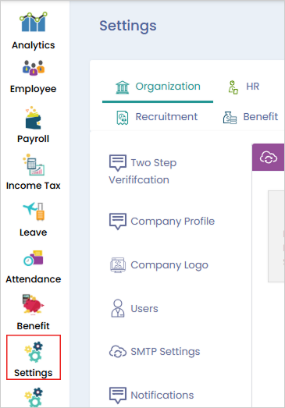
**Step 2:** In the '**Payroll**' tab, select '**Salary structure**'. Then, under '**deduction formula**' select '**regular**'.
**Step 3:** Scroll down to find the '**NPSEMPLOYEERATE**' card, click on the 3 dots, and select '**Edit**'.

**Step 4:** Select '**Direct**' from **‘Direct and Percent’ field**, and click '**Save**'.

**Link:**
### Define the percentage of deduction
**Path:** Cloud login > smHRt search (employee name/ code) to navigate to specific employee cloud profile for whom you want to set > Salary tab > Deduction details > in the ‘NPS contribution rate’ field select 10 0r 14 depending on the tax regime in which the employee is enrolled with (if old then 10 percent and if new regime then 14 percent)> Save.
**Step 1:** Log in to the '**Cloud**' portal and use '**smHRt search**' (employee name/ code) to navigate to the specific employee cloud profile.

**Step 2:** In the employee profile, go to the '**Salary tab**' and select '**Deduction Details**'.

**Step 3:** In the '**NPS contribution rate**' field select '**10**' or '**14**' depending on the tax regime (if old then 10 percent and if new regime then 14 percent). Then Click on '**Save**'.
### Create Formula
**Path:** Cloud login > Settings > Payroll > Salary structure > Under Deduction Formula select Regular > click on 3 dots of NPS card> Click edit > set it to percentage > Set the formula as Earned basic\*(NPSEMPLOYEERATE/100) > Save
**Step 1:** Log in to the '**Cloud**' portal and go to '**Settings**' menu. ‘**Salary structure**'. Under the
**Step 2:** **Under ‘Payroll’** tab, select ‘**Deduction formula**’, select ‘**Regular’.**
**Step 3:** Scroll down to search the '**NPS**' card click on the ‘**3 dots’** and select '**Edit**'.

**Step 4:** Set the '**Direct or percent**' field to ‘Percentage, fill in the formula Earned Basic\*(NPSEMPLOYEERATE)/100) and Click '**Save**'.
**Link:**[**https://cloud.pockethrms.com/Settings/Employee/Index?module=payroll\&submodule=SalaryStructure**](https://cloud.pockethrms.com/Settings/Employee/Index?module=payroll\&submodule=SalaryStructure)
### Create Tax sub-section:
**Path:** Cloud login > settings > Income Tax > Tax Section > tax Sub section > Select ‘Section’ as ‘Aggregate of Deductible amount under Chapter VI-A)’ > Plus Icon > Fill ‘Tax act Details’ field as 80CCD (2)’ > Set limit as ‘7,50,000 > Select ‘Exemption method’ as ‘Yearly Limit’ > Save.
**Step 1:** Log in to the '**Cloud**' portal and go to '**settings**' menu.
**Step 2:** Select the '**Income Tax**' tab, then, under the the '**Tax Sections**' select '**Tax Sub Section**'.
**Step 3:** Select '**Section**' as '**Aggregate of Deductible amount under Chapter VI-A)**' and click the '**Plus Icon**'.
**Step 4:** Fill '**Tax act Details**' field as '**80CCD (2)**', set '**limit**' as '**7,50,000**', select '**Exemption method**' as '**Yearly Limit**', and click '**Save**'.
**Link:**
### Final Step:
**Path:** Cloud login > Income Tax > Income Matching > Section matching (subtab) > In the 80CCD (2) card click on edit > NPS > Save.
**Step 1:** Log in to the '**Cloud**' portal and go to '**Income Tax**'. Select the '**Income Matching**' tab and then the '**Section matching (subtab)**'.

**Step 2:** In the '**80CCD (2)**' card, click on '**edit**'.
**Step 3:** Select **‘Formula**’ as **'NPS',** select **‘Projection’ as ‘Yes’ or ‘No’** as per your need and click **'Save'**
Link:
For any queries, contact

