> For the complete documentation index, see [llms.txt](https://docs.pockethrms.com/llms.txt). Markdown versions of documentation pages are available by appending `.md` to page URLs; this page is available as [Markdown](https://docs.pockethrms.com/introduction-pockethrms-help-document/ess-beginners-guides/ess-portal-employees-guide.md).
# ESS Portal: Employee's Guide
Pocket HRMS Employee Self-service Portal allows employees to take care of their day-to-day tasks such as applying for a leave, downloading salary slips and submitting with ease. Employees seamlessly enter and edit their personal details according to the rights provided by the Administrator.
This guide will walk you through the steps you need to follow for various tasks.
### How to log in to the ESS portal?
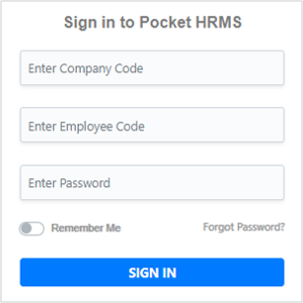
Go to [ess.pockethrms.com](https://ess.pockethrms.com/) and enter the ‘Company Code’, ‘Employee Code’ and ‘Password’ that you received from you via email.
Once you click on the ‘Sign In’ button, it will take you to the ESS dashboard Screen. You should start by creating a new password.
### How to Reset Password?
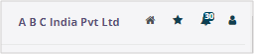
Go to the upper right-hand corner of the screen and click on the ‘Profile Icon’ as shown below.
Here you need to click on the change password menu.
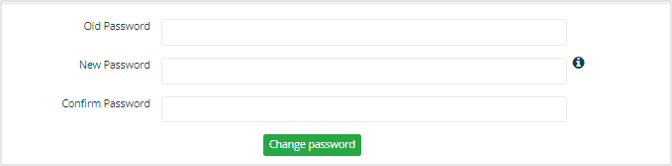
That will take you to the password reset screen. Enter ‘Old Password’ and ‘New Password’ in the respective fields. Ensure that the password you enter in the ‘New Password’ and ‘Confirm Password’ fields are the same. Click on the ‘Change Password’ button to set the new password.
### How to use ESS Dashboard?
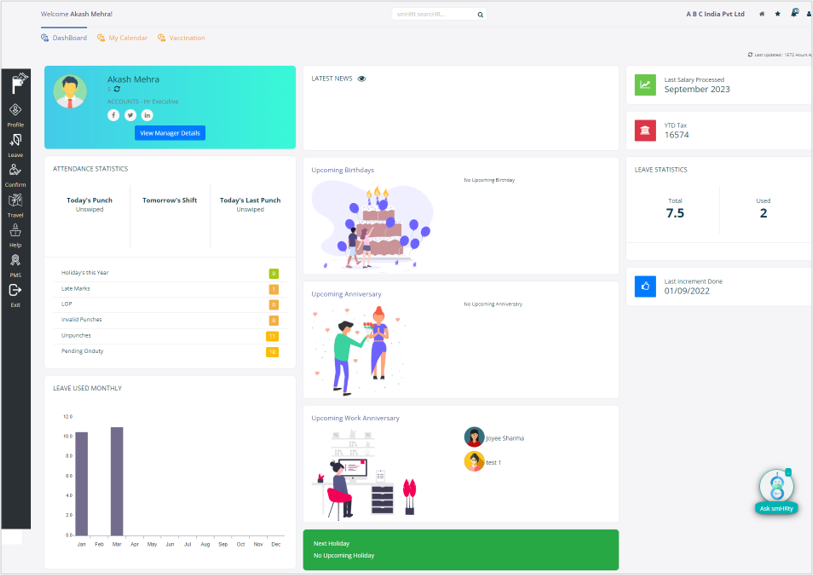
Once you login to the ESS portal it will take you to the ‘Dashboard’. The intuitive Dashboard is designed to provide employees with quick access to essential information. This single screen allows you to perform multiple activities through this easy-to-understand single screen.
The evident card at the top of the screen will show you your name. Employee code as well as designation you are working at.
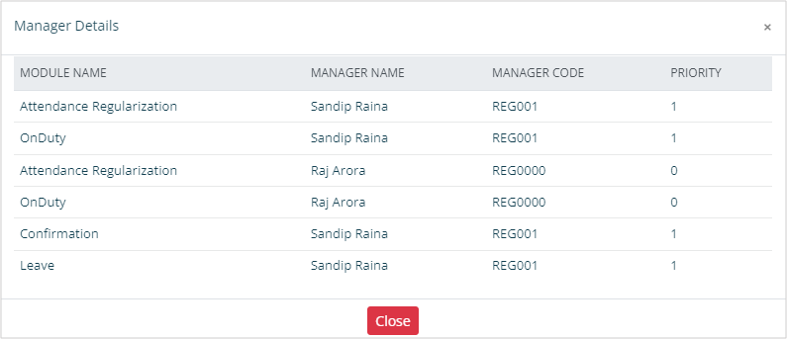
Click on the ‘View Manager Details’ buttons to view your approval manager’s name for respective processes such as ‘Leave’ or ‘Expense’.
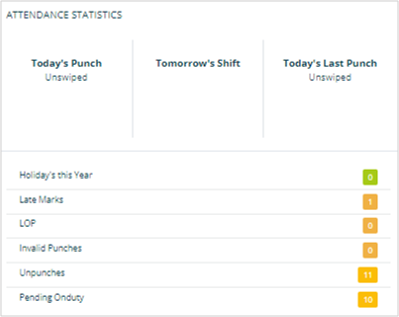
In the ‘Attendance Statistics’ section, you will get easy-to-grasp data about your attendance.
Starting with your Punch entries for the present day the top section also shows the shift schedule for the next day that way you get timely reminders and plan accordingly.
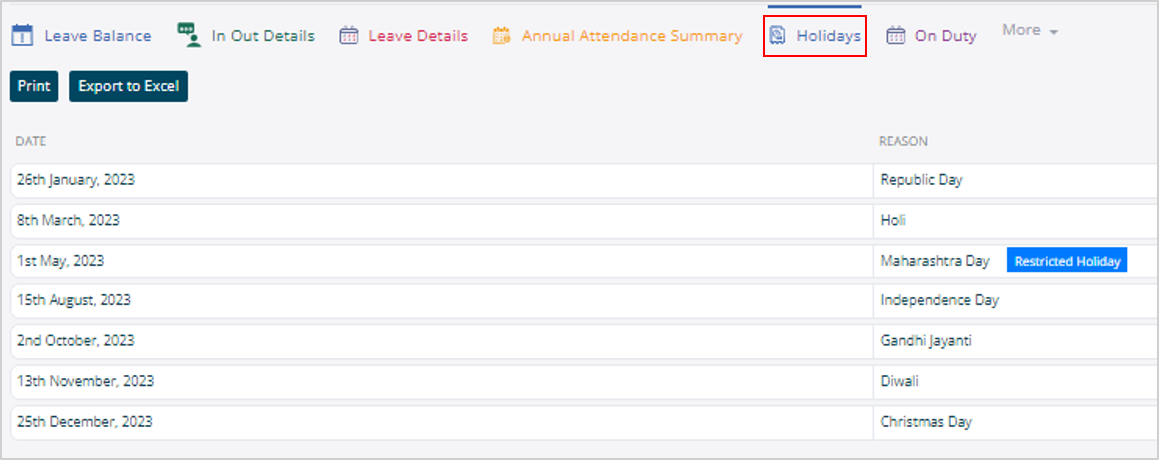
You can click on the ‘Holiday this Year’ to view details about the same.
Similarly, you can view respective details when you click on the other tabs in the section such as late marks and unpunches.
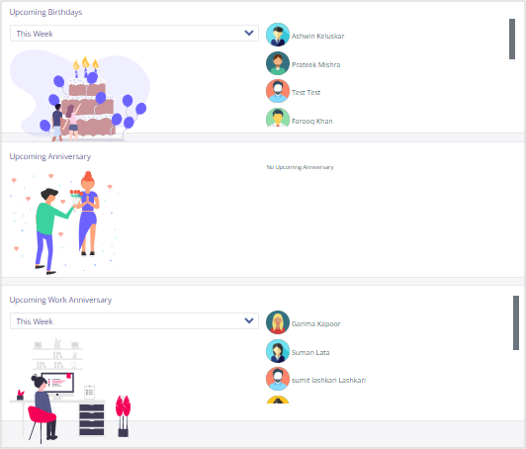
We also have dedicated sections for news as well as upcoming birthdays and anniversaries in the company so you can stay informed.
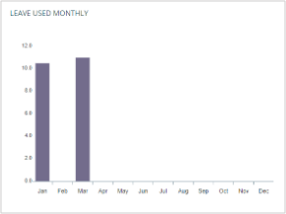
The graphical representation of the leaves you utilize helps you to easily grasp the information.
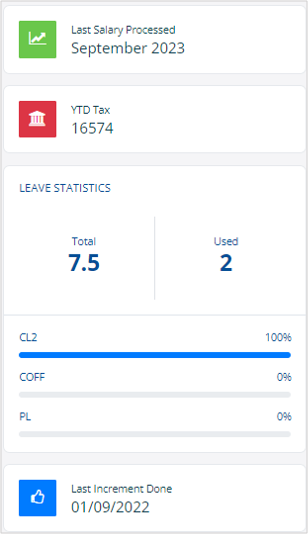
You can click on the ‘Last Salary Processed’ to download your pay slip. Similarly, the section gives you tac details, the last increment date as well as used leaves and leave balance.
### How to view employment details?
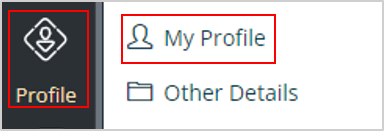
Go to the ‘Profile’ menu and select ‘My Profile’.
Go to the ‘Employee Details’ tab to view your profile, where you can view your personal information such as name, date of birth, date of joining, PF account number and more. You can also access the ‘Personal Details’ and ‘Additional Details’ tab.
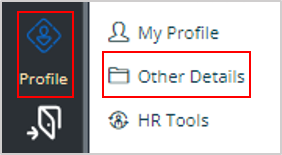
Under the ‘Other Details’ you can able to update or view Family, Academic, joining documents, nominee details, employee history, Language details and Training details based on the rights given to you.
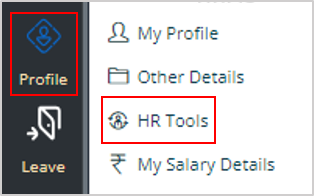
To access HR-related information, go to the ‘HR Tools’ submenu under the ‘Profile’ menu.
* Contact Info: Contact information of the HR and administrator can be seen here
* Policies: Company policies which are shared by the HR team can be downloaded from this option
* General Info: General Information about the company can be downloaded through this option
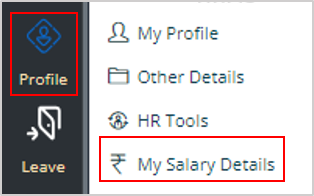
To access details related to their salary go to the ‘My Salary Details’ submenu.
* My Pay slip: You may download your Pay slip from this option
* My Provident Fund Details: You may check your PF details from this option
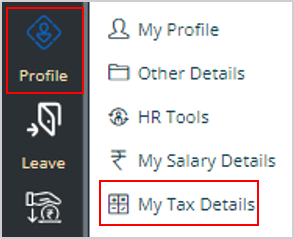
You can access your tax-related details by going to the ‘My Tax Details’ submenu.
* Work Sheet – TDS: You may download your Income Tax worksheet through this option
* TDS Declaration Entry: You may enter your TDS declaration entries through this option
* TDS – Proof Entry: You may enter your TDS declaration entries through this option
* Tax Calculation: You can able to calculate your annual tax using this option
* Form 16: You can able to download your form 16 using this option
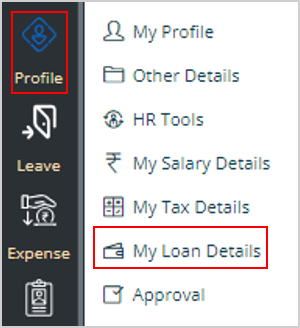
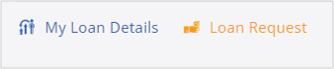
You also get easy access to your loan information under ‘My Loan Details’ submenu.
* My Loan Details: You can able to see your loan details using this option
* Loan Request: You can make a loan request using this option if applicable
### How to apply for leave?
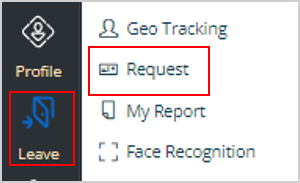
From the left-hand side menu bar click on the ‘Leave’ menu followed by the ‘Request’ submenu.
Click on the ‘Leave’ tab and,

select ‘Type of Leave’ from the drop-down.

Once you select the ‘Type of Leave’ the respective leave balance will be displayed in red colour.

Select ‘Reliever - Employee Name’ who is going to take care of your work responsibilities while you are on leave.

Select the duration of your leave. Choose whether it is a full day or half day from the drop-down options for both ‘From Date’ and ‘To Date’.

Fill in the other essential information such as ‘Reason’ for the leave, whether you are going to ‘Leave Station’, as well as ‘Vacation Address’ and ‘Contact Number’ in the respective fields.

Once you click on the ‘Add’ button you will see the summary for your leave request.
You can click on the ‘Delete’ icon if there are any mistakes and you want to create a new request. Click on the ‘Confirm Leave’ button to submit the leave request.

You can see your leave request under the ‘Previous Leaves’ section along with the ‘Status’.
You can also delete your leave application by clicking on the ‘Cancel’ button.

Once the manager approves your leave you will be notified about the same by an email as well as mobile notification for Pocket HRMS app.
### How to RequestOn-duty or Work from Home?
Click on the ‘Leave’ menu from the sidebar followed by ‘Request’ sub-menu.

Click on the ‘On-duty or Work from Home’ tab and select the ‘Start Date’ & ‘End Date’ in the respective fields.

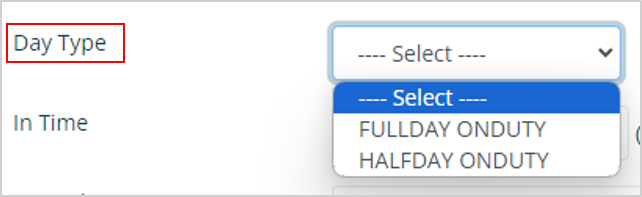
Select the ‘Day Type’ from the drop-down.
Enter ‘In Time’ and ‘Out Time’ according to 24-hour format.

Choose your ‘Remark’ and click on the ‘Save’ button to submit your request.

The request will go to your Manager for approval. The respective and you will get an email and app notification after the approval.
### How to regularize your attendance?
Select ‘Leave’ from the left-hand sidebar followed by the ‘Request’.

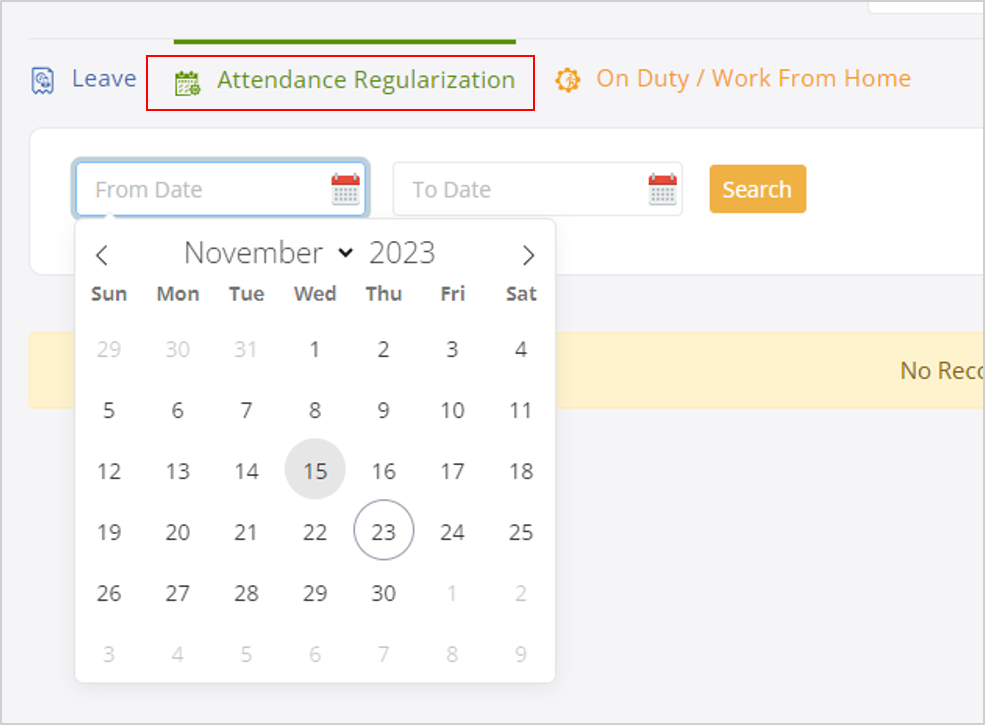
Go to ‘Attendance Regularization’ tab. Select the ‘From Date’, ‘To Date’ and click on the ‘Search’ button.
In the search results, you will be able to see your in and out items along with status and remarks for your previous attendance regularization request. You can also choose to ‘Re-Updte’ your request.

Click on the ‘Update’ button for the entry you want to regularize.

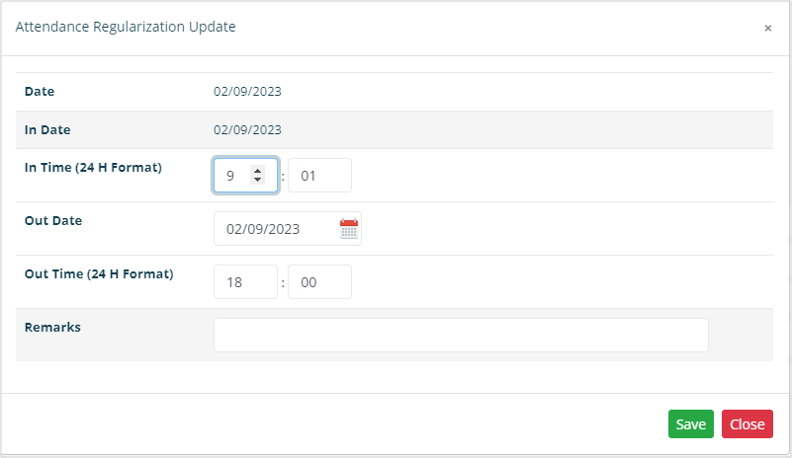
Modify the ‘In Time’ or ‘Out Time’, add ‘Remark’ and click on the ‘Save’ button to submit your attendance regularization request.
Once the manager approves your request you will be notified about the same by email as well as mobile notification for Pocket HRMS app.
### How to upload pictures for face recognition?
Select ‘Leave’ from the left-hand sidebar followed by the ‘Face Recognition’.
Go to the ‘Face Recognition’ tab. Click on the 3 boxes individually one-by-one to upload your high-resolution pictures with clear background and click on the ‘Save’ button.
After you click on the ‘Save’ button your pictures will be sent to HR for approval and the ‘Face Recognition’ feature will be activated for attendance once HR approves your pictures.
For any queries, contact
---
# Agent Instructions
This documentation is published with GitBook. GitBook is the documentation platform designed so that both humans and AI agents can read, navigate, and reason over technical content effectively. Learn more at gitbook.com.
## Querying This Documentation
If you need additional information that is not directly available in this page, you can query the documentation dynamically by asking a question.
Perform an HTTP GET request on the following URL with the `ask` and `goal` query parameters:
```
GET https://docs.pockethrms.com/introduction-pockethrms-help-document/ess-beginners-guides/ess-portal-employees-guide.md?ask=&goal=
```
`ask` is the immediate question: it should be specific, self-contained, and written in natural language.
`goal` is what the user is ultimately trying to achieve, the reason they need the answer. Sharing it helps GitBook give you a better, more relevant answer. A goal is most helpful when it describes the outcome the user wants rather than restating the question. For example, with `ask=how do I create an API token`, a goal like `build a script that syncs our docs to a CMS` lets GitBook tailor the answer to that use case.
The response will contain a direct answer to the question and relevant excerpts and sources from the documentation.
Use this mechanism when the answer is not explicitly present in the current page, you need clarification or additional context, or you want to retrieve related documentation sections.
.png?alt=media&token=48354c48-158e-4ba8-beaa-e3ad8d016db3)






 Click on the ‘Leave’ tab and,

select ‘Type of Leave’ from the drop-down.

Once you select the ‘Type of Leave’ the respective leave balance will be displayed in red colour.

Select ‘Reliever - Employee Name’ who is going to take care of your work responsibilities while you are on leave.

Select the duration of your leave. Choose whether it is a full day or half day from the drop-down options for both ‘From Date’ and ‘To Date’.

Fill in the other essential information such as ‘Reason’ for the leave, whether you are going to ‘Leave Station’, as well as ‘Vacation Address’ and ‘Contact Number’ in the respective fields.

Once you click on the ‘Add’ button you will see the summary for your leave request.
You can click on the ‘Delete’ icon if there are any mistakes and you want to create a new request. Click on the ‘Confirm Leave’ button to submit the leave request.

You can see your leave request under the ‘Previous Leaves’ section along with the ‘Status’.
You can also delete your leave application by clicking on the ‘Cancel’ button.

Once the manager approves your leave you will be notified about the same by an email as well as mobile notification for Pocket HRMS app.
### How to RequestOn-duty or Work from Home?
Click on the ‘Leave’ menu from the sidebar followed by ‘Request’ sub-menu.

Click on the ‘On-duty or Work from Home’ tab and select the ‘Start Date’ & ‘End Date’ in the respective fields.

Select the ‘Day Type’ from the drop-down.
Click on the ‘Leave’ tab and,

select ‘Type of Leave’ from the drop-down.

Once you select the ‘Type of Leave’ the respective leave balance will be displayed in red colour.

Select ‘Reliever - Employee Name’ who is going to take care of your work responsibilities while you are on leave.

Select the duration of your leave. Choose whether it is a full day or half day from the drop-down options for both ‘From Date’ and ‘To Date’.

Fill in the other essential information such as ‘Reason’ for the leave, whether you are going to ‘Leave Station’, as well as ‘Vacation Address’ and ‘Contact Number’ in the respective fields.

Once you click on the ‘Add’ button you will see the summary for your leave request.
You can click on the ‘Delete’ icon if there are any mistakes and you want to create a new request. Click on the ‘Confirm Leave’ button to submit the leave request.

You can see your leave request under the ‘Previous Leaves’ section along with the ‘Status’.
You can also delete your leave application by clicking on the ‘Cancel’ button.

Once the manager approves your leave you will be notified about the same by an email as well as mobile notification for Pocket HRMS app.
### How to RequestOn-duty or Work from Home?
Click on the ‘Leave’ menu from the sidebar followed by ‘Request’ sub-menu.

Click on the ‘On-duty or Work from Home’ tab and select the ‘Start Date’ & ‘End Date’ in the respective fields.

Select the ‘Day Type’ from the drop-down.
 Enter ‘In Time’ and ‘Out Time’ according to 24-hour format.

Choose your ‘Remark’ and click on the ‘Save’ button to submit your request.

The request will go to your Manager for approval. The respective and you will get an email and app notification after the approval.
### How to regularize your attendance?
Select ‘Leave’ from the left-hand sidebar followed by the ‘Request’.

Go to ‘Attendance Regularization’ tab. Select the ‘From Date’, ‘To Date’ and click on the ‘Search’ button.
Enter ‘In Time’ and ‘Out Time’ according to 24-hour format.

Choose your ‘Remark’ and click on the ‘Save’ button to submit your request.

The request will go to your Manager for approval. The respective and you will get an email and app notification after the approval.
### How to regularize your attendance?
Select ‘Leave’ from the left-hand sidebar followed by the ‘Request’.

Go to ‘Attendance Regularization’ tab. Select the ‘From Date’, ‘To Date’ and click on the ‘Search’ button.
 In the search results, you will be able to see your in and out items along with status and remarks for your previous attendance regularization request. You can also choose to ‘Re-Updte’ your request.

Click on the ‘Update’ button for the entry you want to regularize.

Modify the ‘In Time’ or ‘Out Time’, add ‘Remark’ and click on the ‘Save’ button to submit your attendance regularization request.
In the search results, you will be able to see your in and out items along with status and remarks for your previous attendance regularization request. You can also choose to ‘Re-Updte’ your request.

Click on the ‘Update’ button for the entry you want to regularize.

Modify the ‘In Time’ or ‘Out Time’, add ‘Remark’ and click on the ‘Save’ button to submit your attendance regularization request.
 Once the manager approves your request you will be notified about the same by email as well as mobile notification for Pocket HRMS app.
### How to upload pictures for face recognition?
Select ‘Leave’ from the left-hand sidebar followed by the ‘Face Recognition’.
Once the manager approves your request you will be notified about the same by email as well as mobile notification for Pocket HRMS app.
### How to upload pictures for face recognition?
Select ‘Leave’ from the left-hand sidebar followed by the ‘Face Recognition’.
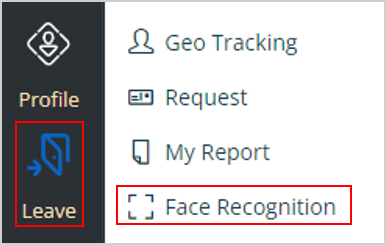 Go to the ‘Face Recognition’ tab. Click on the 3 boxes individually one-by-one to upload your high-resolution pictures with clear background and click on the ‘Save’ button.
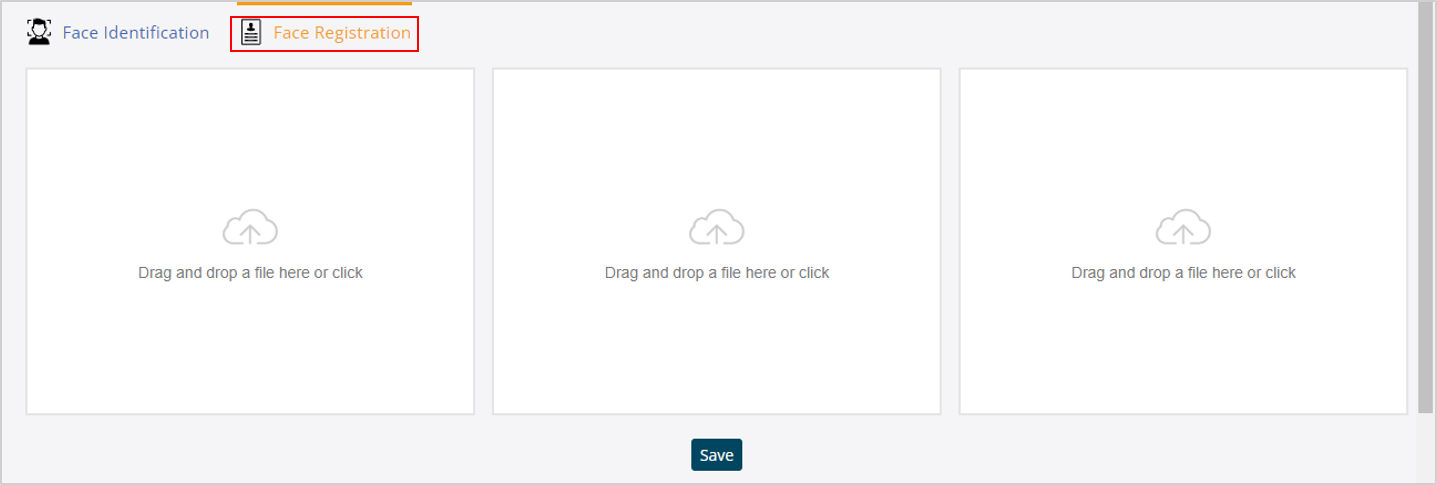 After you click on the ‘Save’ button your pictures will be sent to HR for approval and the ‘Face Recognition’ feature will be activated for attendance once HR approves your pictures.
For any queries, contact
After you click on the ‘Save’ button your pictures will be sent to HR for approval and the ‘Face Recognition’ feature will be activated for attendance once HR approves your pictures.
For any queries, contact