> For the complete documentation index, see [llms.txt](https://docs.pockethrms.com/llms.txt). Markdown versions of documentation pages are available by appending `.md` to page URLs; this page is available as [Markdown](https://docs.pockethrms.com/ess-portal/employee/leave-and-attendance/leave.md).
# Leave
A brief description about the leave process
Leaves are an integral part of employment. As a result, it is a necessity and is authorized by the company as a part of the employee’s employment contract. Hence, Pocket HRMS helps you in easy management of employee leaves.
**This section will cover an in-detail guide to the leave management process.**
* Requesting Leave
* Check Status
* ESS
* Mobile App
* App Notification
* Cancel Leave Request
* Report
### **How to apply for leaves using ESS Portal?**
**Step 1:** Log into the ESS portal, select ‘**Leave**’ and then ‘**Request**’ from the left side menu.

**Step 2:** Select the ‘**Leave**’ tab at the top.

**Step 3:** Select the type of leave from the drop-down menu.

**Step 4:** Select the start date and end date as well as the duration of the same.

**Step 5:** State the reason for the leave and select whether you are going out of the station.

**Step 6:** Optionally, you can provide a vacation address and contact number.

**Step 7:** Select the button ‘**Add**’ to apply.

### **How to apply for leaves using the ESS Mobile App?**
**Step 1:** Log into the ESS mobile app, open the left side menu by tapping on the ‘Hamburger Menu Icon’ (3 Lines) and select the option ‘Leave’.
**Step 2:** Tap on the option ‘Request’.

**Step 3:** Tap on the **‘Leave’** tab at the top.

**Step 4:** Select the start date and end date as well as the duration of the same.

**Step 5:** Select the type of leave, and the reason for leave and mention whether you are going out of station.

**Step 6:** Optionally, you can provide a vacation address and contact number if you are going out of station.

**Step 7:** Tap on the ‘**Save**’ button to apply.

### **How to check leaves’ request status using ESS Portal?**
**Step 1:** Log into the ESS portal, select ‘**Leave**’ and then **‘My Report’** from the left side menu.

**Step 2:** Select **‘Leave Details’** tab at the top.

**Step 3:** Your previous leaves are displayed here.

**Step 4:** If you wish so, you can select the relevant filters at the top and select the ‘**Search**’ button to find the status of a particular leave.

**Step 5:** You will also be able to find further details about a particular leave by selecting the corresponding button under the **‘Leave Type’** column.

**How to check leaves’ request status using ESS Mobile App?**
**Step 1:** Log into the ESS mobile app, open the left side menu by tapping on the ‘Hamburger Menu Icon’ (3 Lines) and select the option ‘Leave’.

**Step 2:** Tap on the option **‘My Report’.**

**Step 3:** Tap on the **‘Leave Details’** tab at the top.

**Step 4:** Your previous leaves in the current financial year are displayed here.

**Step 5:** If you wish so, you can select the filter button at the bottom right and select the relevant filters and then tap on ‘**Search**’ button to find the status of a particular leave.
### **How to check leaves’ request status using ESS Mobile App Notification?**
**Step 1:** Log into the ESS mobile app, tap on the bell icon at the top right corner of the screen.

**Step 2:** You will be able to view whether your leave request has been approved or rejected based on the notifications titled **‘Leave Accepted’** or **‘Leave Rejected’**

### **How to cancel leave requests from the ESS portal?**
**Step 1:** Log into the **ESS portal**, select ‘**Leave**’ and then ‘Request’ from the left side menu.

**Step 2:** Select the ‘**Leave**’ tab at the top.

**Step 3:** You will be able to view the previously applied leaves at the bottom of the page under the table titled ‘Previous Leaves’.

**Step 4:** Select the ‘**Cancel**’ button under the ‘**Action**’ column corresponding to the leave that you wish to cancel and select ‘**OK**’ on the pop-up to confirm your selection.

### **How to generate your own leave report from the ESS portal?**
**Step 1:** Log into the ESS portal, select ‘**Leave**’ and then ‘**My Report**’ from the left side menu.

**Step 2:** Select the **‘Leave Details’** tab at the top.

**Step 3:** Your previous leaves are displayed here.

**Step 4:** If you wish so, you can select the relevant filters at the top and select the ‘Search’ button to find the status of a particular leave.

**Step 5:** You will also be able to find further details about a particular leave by selecting the corresponding button under the **‘Leave Type’** column.

**Note**: If you are unable to follow above steps, kindly contact us at
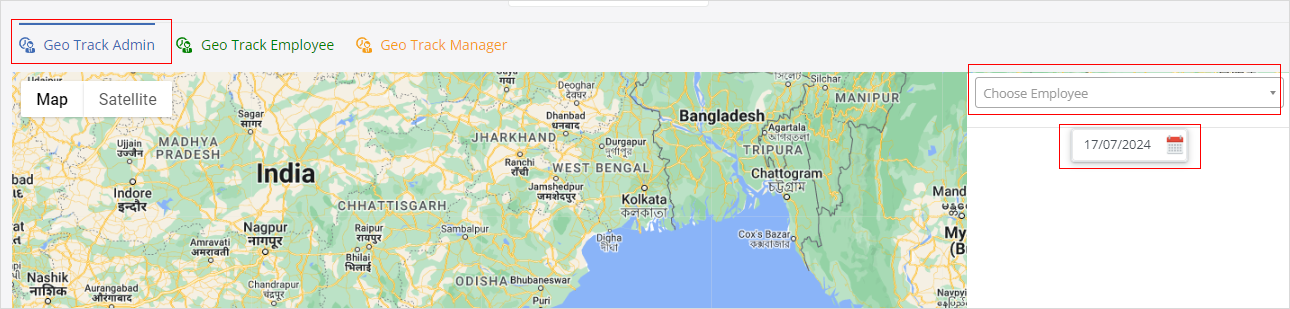
### How to check my geo-tracking details from the ESS portal?
**Step 1:** Log into the ESS portal, go to the ‘**Leave**’ menu and click on the **‘Geo-tracking’** submenu.

**Step 2**: Click on the **‘Geo Track Employee’** tab, **‘Choose Employee’** and the date from the respective fields.
The geo-tracking details will appear for the selected date and you can see the **‘location pins’** on the map.

For any queries, connect with us at
 **Step 2:** Tap on the option ‘Request’.

**Step 3:** Tap on the **‘Leave’** tab at the top.

**Step 4:** Select the start date and end date as well as the duration of the same.

**Step 5:** Select the type of leave, and the reason for leave and mention whether you are going out of station.

**Step 6:** Optionally, you can provide a vacation address and contact number if you are going out of station.

**Step 7:** Tap on the ‘**Save**’ button to apply.

### **How to check leaves’ request status using ESS Portal?**
**Step 1:** Log into the ESS portal, select ‘**Leave**’ and then **‘My Report’** from the left side menu.

**Step 2:** Select **‘Leave Details’** tab at the top.

**Step 3:** Your previous leaves are displayed here.

**Step 4:** If you wish so, you can select the relevant filters at the top and select the ‘**Search**’ button to find the status of a particular leave.

**Step 5:** You will also be able to find further details about a particular leave by selecting the corresponding button under the **‘Leave Type’** column.

**How to check leaves’ request status using ESS Mobile App?**
**Step 1:** Log into the ESS mobile app, open the left side menu by tapping on the ‘Hamburger Menu Icon’ (3 Lines) and select the option ‘Leave’.

**Step 2:** Tap on the option **‘My Report’.**

**Step 3:** Tap on the **‘Leave Details’** tab at the top.

**Step 4:** Your previous leaves in the current financial year are displayed here.

**Step 5:** If you wish so, you can select the filter button at the bottom right and select the relevant filters and then tap on ‘**Search**’ button to find the status of a particular leave.
 ### **How to check leaves’ request status using ESS Mobile App Notification?**
**Step 1:** Log into the ESS mobile app, tap on the bell icon at the top right corner of the screen.

**Step 2:** You will be able to view whether your leave request has been approved or rejected based on the notifications titled **‘Leave Accepted’** or **‘Leave Rejected’**

### **How to cancel leave requests from the ESS portal?**
**Step 1:** Log into the **ESS portal**, select ‘**Leave**’ and then ‘Request’ from the left side menu.

**Step 2:** Select the ‘**Leave**’ tab at the top.

**Step 3:** You will be able to view the previously applied leaves at the bottom of the page under the table titled ‘Previous Leaves’.

**Step 4:** Select the ‘**Cancel**’ button under the ‘**Action**’ column corresponding to the leave that you wish to cancel and select ‘**OK**’ on the pop-up to confirm your selection.

### **How to generate your own leave report from the ESS portal?**
**Step 1:** Log into the ESS portal, select ‘**Leave**’ and then ‘**My Report**’ from the left side menu.

**Step 2:** Select the **‘Leave Details’** tab at the top.

**Step 3:** Your previous leaves are displayed here.

**Step 4:** If you wish so, you can select the relevant filters at the top and select the ‘Search’ button to find the status of a particular leave.

**Step 5:** You will also be able to find further details about a particular leave by selecting the corresponding button under the **‘Leave Type’** column.

**Note**: If you are unable to follow above steps, kindly contact us at