> For the complete documentation index, see [llms.txt](https://docs.pockethrms.com/llms.txt). Markdown versions of documentation pages are available by appending `.md` to page URLs; this page is available as [Markdown](https://docs.pockethrms.com/faqs/cloud-portal/ess-settings/leave/activate-punch.md).
# Activate Punch
### 1. How to limit punching options of mobile application for a few employees?
To limit punching option for an employee you can follow the path below:
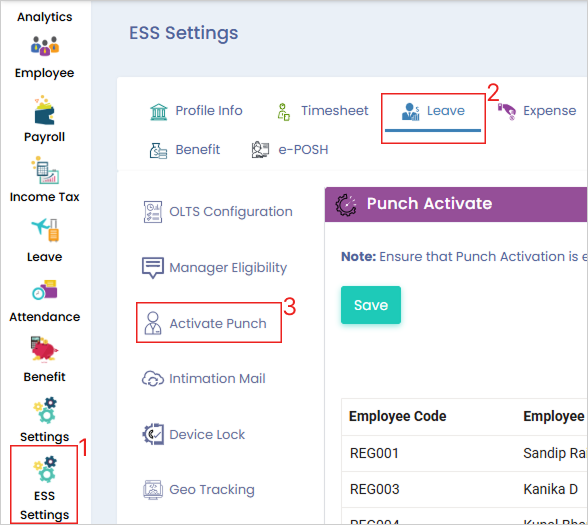
**Path:** Login to cloud > ESS Setting > Leave > Activate Punch > Enable the options as required and save
**Step 1:** Login to cloud portal, go to ‘ESS Settings’, select ‘Leave’ from tab and click on ‘Activate Punch’.
**Step 2:** Enable/Disable the options by ticking or un ticking the boxes as required and click on ‘Save’.

**Note:** To enable, tick the boxes and to disable, untick the boxes and save. This will help you limit punch for some employees.
**Link**:
{% embed url="" %}
For any queries, contact
### 2. How to check new employee enrolled for face and geo tracking?
To check employee mapped for the face punch / selfie punching / Geo tracking, you have to follow the process mentioned below:
**Path:** Cloud login > ESS Settings > Leave > Activate punch > Here you can check the employees enrolled for face and geo tracking by viewing if the ticks are enabled in geo tracking and face punch option or are disabled.
**Step 1**: Log into the cloud portal, go to the ‘ESS Settings’ menu and under the ‘Leave’ tab, click on the ‘Activate Punch’ subtab.
**Step 2**: Under the ‘Selfie Activate’ & 'Punch Activate' column, Check if the checkbox of the employees for whom you want to activate selfie attendance and face punch are enabled or not.
**Link**:
{% embed url="" %}
For any queries, contact
### 3. Do I need to map employees under punching through mobile?
Yes, you need to map the employee for enable the mobile app punching feature for that kindly refer the process below:
**Path**: Cloud portal>ESS Settings>Leave>Activate Punch>select employee>Save
**Step 1**: Log into the cloud portal and click on the ‘ESS Setting’ menu.
**Step 2**: Click on the ‘Leave’ tab and select ‘Activate Punch’ subtab. Select the checkbox under the ‘Punch Activate’ column for the respective employee and click on the ‘Save’ button.
The Punch-in and Punch-out will be activated for the employee for their ESS mobile app.
**Link**:
{% embed url="" %}
For any queries, contact