> For the complete documentation index, see [llms.txt](https://docs.pockethrms.com/llms.txt). Markdown versions of documentation pages are available by appending `.md` to page URLs; this page is available as [Markdown](https://docs.pockethrms.com/faqs/cloud-portal/ess-settings/profile-info/global-setting.md).
# Global Setting
### 1. How to enable geofencing location to employee set address?
To enable the employee address for geofencing you can do it from path below:
\
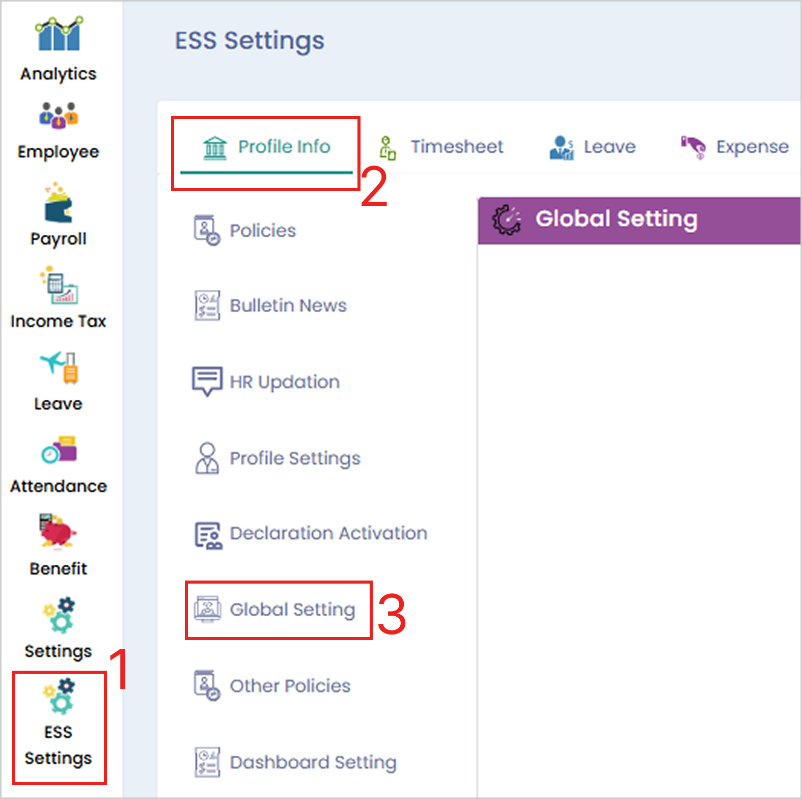
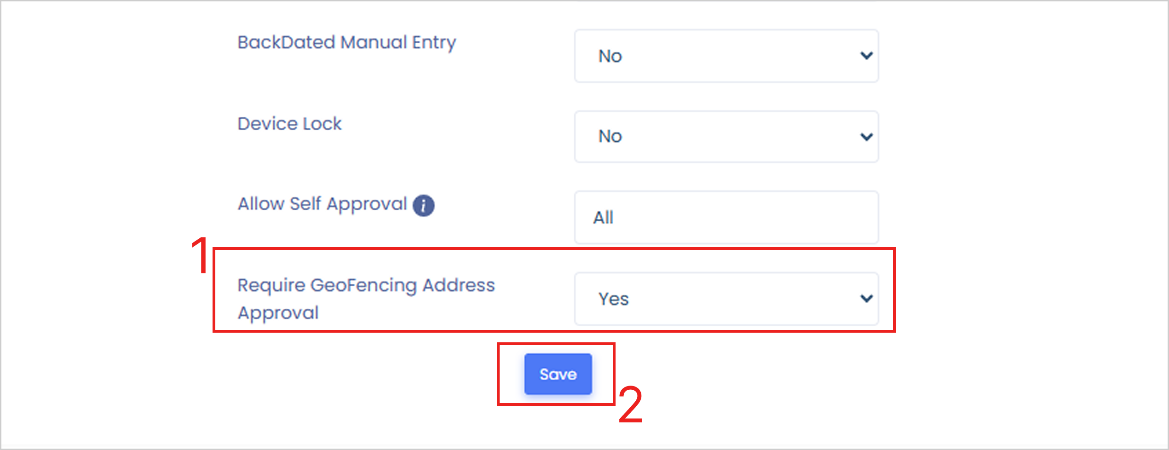
**Path:** Login cloud portal > ESS Setting > Profile Info > Global Setting > Require Geofencing Address Approval option select Yes or No > Save
**Step 1:** Login to the cloud portal, go to ‘ESS Setting’ menu, under the ‘Profile Info’ tab, select ‘Global Setting’ option.
**Step 2:** Fill the ‘Require Geofencing Address Approval’ option as ‘Yes’ or ‘No’ from the drop-down as per your requirement, and click on ‘Save’.
**Link:**
For any queries, contact
### 2. How do device lock setting?
**Path:** Cloud login > ESS Setting > Profile info > Global Settings > From the ‘Device Lock’ drop-down click on the ‘Yes’ to activate the device lock function > Save.
**Step 1:** Log in to the **Cloud portal** and navigate to **‘ESS Setting’ menu**.
**Step 2:** Select the **‘Profile info’** tab and then click on **‘Global Settings’**.
**Step 3:** Locate the **‘Device Lock’** dropdown menu and select **‘Yes’** from the dropdown options to activate the device lock function. Then, click on **‘Save’**.
**Link:**
For any queries, contact