> For the complete documentation index, see [llms.txt](https://docs.pockethrms.com/llms.txt). Markdown versions of documentation pages are available by appending `.md` to page URLs; this page is available as [Markdown](https://docs.pockethrms.com/faqs/ess-portal/leave/annual-attendance-summary.md).
# Annual Attendance Summary
### 1. How to check Attendance Summary in Pocket HRMS Mobile app?
To check attendance summary in mobile app please follow steps below:\
\
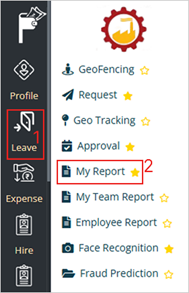
**Path:** Open ESS app > Leave > My Report > Annual Attendance Summary.
**Step 1:** Open the ESS portal. Tap on the ‘Three horizontal lines ‘on the left in the top of the page, and select the ‘Leave’ module in the main menu, Select the ‘My Report’ option.
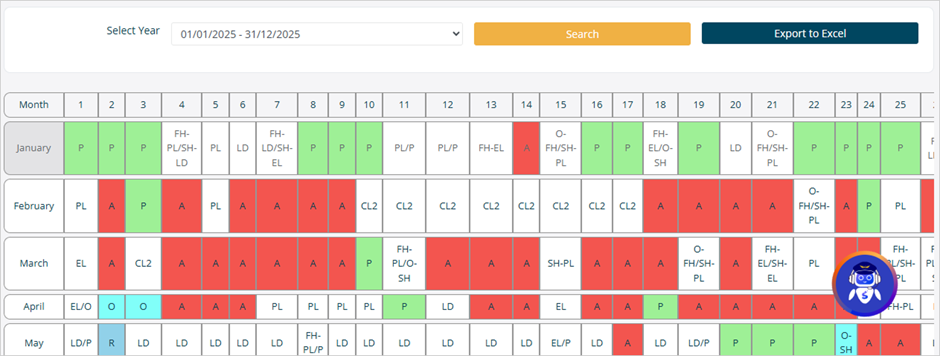
**Step 2:** Tap on ‘Annual Attendance Summary’ to view the detailed report of your attendance for the year.
**Link:**
To enable this option in ESS app Kindly refer the process below:
**Step 1**: Log into the cloud portal, go to the ‘ESS Settings’ menu and under the ‘Profile Info’ tab and click on the ‘Role Allocation’ subtab.
**Step 2**: From respective fields ‘Select Module’ for which you want to give access to the particular role.
**Step 3**: Then ‘Select Role’ for which you want to give access to selected module and click on the ‘Search’ button.
**Step 4**: Once you have selected the module and role click on the ‘Search’ button. The options/features for the respective module will appear.
**Step 5**: You can select options and the list of features will appear under it. Select the checkboxes for various features for which you want to give access, similarly if you want to remove access untick the respective checkboxes. Click on the ‘Save’ button and access to selected features will be allocated for the particular role.
**Example 1:**
We select the module as ‘Leave’ and role as ‘Manager’ and click on the ‘Search’ button. We select the checkbox for the ‘Approval’ and select options such as leave, OT approval, On Duty/Work From Home’ and more for which approval rights to be given to the ‘Manager Role’ and click on the ‘Save’ button.
**Example 2:**
We select the module as ‘Expense’ and the role as ‘Finance’ and click on the ‘Search’ button. Under the various fields such as approval, request, My trip and more we select the option for which you want to give right to the ‘Finance Role’ according to your company policies and click on the ‘Save’ button.
For any queries, contact