# My Team Report

### 1. How to check the team report through Admin ESS portal?

\
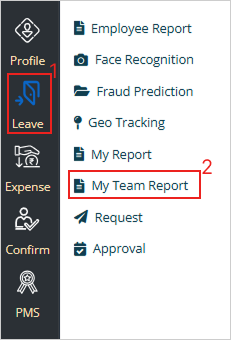
**Path:** Login Admin ESS >> Leave >> My Team Report >> More >> Geo Tracking Report >> Download Excel

Step 1: Login to admin ESS portal, go to ‘Leave’ menu, and select ‘My Team report’ submenu.

<figure><img src="https://4282324958-files.gitbook.io/~/files/v0/b/gitbook-x-prod.appspot.com/o/spaces%2F-MXep_PEmh8mDPVWj49x%2Fuploads%2FUxTEgSgKScJfjFR2M2xR%2F0.png?alt=media" alt=""><figcaption></figcaption></figure>

Step 2: Click on ‘More’ tab and select ‘Geo-Tracking Report’ from the drop-down.

![](https://4282324958-files.gitbook.io/~/files/v0/b/gitbook-x-prod.appspot.com/o/spaces%2F-MXep_PEmh8mDPVWj49x%2Fuploads%2FN40zz1UIiQWIdQdl8iDR%2F1.png?alt=media)

![](https://4282324958-files.gitbook.io/~/files/v0/b/gitbook-x-prod.appspot.com/o/spaces%2F-MXep_PEmh8mDPVWj49x%2Fuploads%2FWlv0JOdpJ44RhMUy5PhF%2F2.png?alt=media)

**Step 3:** Select the ‘Date Range’ and Click on the ‘Download Excel’ button.

![](https://4282324958-files.gitbook.io/~/files/v0/b/gitbook-x-prod.appspot.com/o/spaces%2F-MXep_PEmh8mDPVWj49x%2Fuploads%2FhXwf3eYBG9TMVgfZ9AJj%2F3.png?alt=media)

**Note:** Keep the ‘Employee’ column blank if you want to download the excel for all the employees.

In case you want to download Excel for any specific employee then fill the ‘Employee’ column with the ‘Employee Name’, select the ‘date Range and click on ‘Download Excel’.

![](https://4282324958-files.gitbook.io/~/files/v0/b/gitbook-x-prod.appspot.com/o/spaces%2F-MXep_PEmh8mDPVWj49x%2Fuploads%2FBk8Kk0BHn7SvtnIzz4lh%2F4.png?alt=media)

**Link**:<https://ess.pockethrms.com/Leave/TeamReport/MyTeamLeaveReport?Menu=GeoTrackingReport>

For any queries, contact <support@pockethrms.com>

### 2. How to check the Geo Tracking employee wise location tagging report?

To check the geo tracking report where the employee wise location tagging will reflect, you can go to admin or manager's ESS portal. The path is as follows:

**Path:** Login Admin ESS > Leave > My Team Report > More > Geo Tracking Report > Download Excel

**Step 1:** Login to admin ESS portal, go to ‘Leave’ menu, and select ‘My Team report’ submenu.

<figure><img src="https://4282324958-files.gitbook.io/~/files/v0/b/gitbook-x-prod.appspot.com/o/spaces%2F-MXep_PEmh8mDPVWj49x%2Fuploads%2FWDeZvPh7f7j9k8j0kTts%2Fimage.png?alt=media&#x26;token=a85c5694-56c0-47c2-89a9-118ef8f42484" alt=""><figcaption></figcaption></figure>

**Step 2:** Click on ‘More’ tab and select ‘Geo-Tracking Report’ from the drop-down.

<figure><img src="https://4282324958-files.gitbook.io/~/files/v0/b/gitbook-x-prod.appspot.com/o/spaces%2F-MXep_PEmh8mDPVWj49x%2Fuploads%2FKyUm8EboIvvuR6384WEe%2Fimage.png?alt=media&#x26;token=b7dbe365-2a03-4c5d-a57b-0721a955dc7f" alt=""><figcaption></figcaption></figure>

<figure><img src="https://4282324958-files.gitbook.io/~/files/v0/b/gitbook-x-prod.appspot.com/o/spaces%2F-MXep_PEmh8mDPVWj49x%2Fuploads%2F11F63i7maZH6jPoNqscy%2Fimage.png?alt=media&#x26;token=8f0d89ba-fa94-4bd4-bc7f-21da83ebcca0" alt=""><figcaption></figcaption></figure>

**Step 3:** Select the ‘Date Range’ and Click on the ‘Search’ button.

<figure><img src="https://4282324958-files.gitbook.io/~/files/v0/b/gitbook-x-prod.appspot.com/o/spaces%2F-MXep_PEmh8mDPVWj49x%2Fuploads%2Fw1M78y3wo9r1ybQsutOO%2Fimage.png?alt=media&#x26;token=04017df7-1779-40dc-8bc0-dd6216b1110d" alt=""><figcaption></figcaption></figure>

**Note:** Keep the ‘Employee’ column blank if you want to download the excel for all the employees.

In case you want to download Excel for any specific employee then fill the ‘Employee’ column with the ‘Employee Name’, select the ‘date Range and click on ‘Download Excel’.

<figure><img src="https://4282324958-files.gitbook.io/~/files/v0/b/gitbook-x-prod.appspot.com/o/spaces%2F-MXep_PEmh8mDPVWj49x%2Fuploads%2FAJMJeWkKz0m0qVYESynm%2Fimage.png?alt=media&#x26;token=e488a0be-b083-4c71-bc53-eb46f591d16b" alt=""><figcaption></figcaption></figure>

Link:<https://ess.pockethrms.com/Leave/TeamReport/MyTeamLeaveReport?Menu=GeoTrackingReport>

For any queries, contact <support@pockethrms.com>