> For the complete documentation index, see [llms.txt](https://docs.pockethrms.com/llms.txt). Markdown versions of documentation pages are available by appending `.md` to page URLs; this page is available as [Markdown](https://docs.pockethrms.com/feature-guides/google-meet-integration.md).
# Google Meet Integration
### **Overview**
The Google Meet Integration lets Pocket HRMS generate Google Meet links automatically when an interview is scheduled.
Once enabled, any recruiter scheduling an interview through Pocket HRMS with the **Online** mode and **Google Meet** platform selected gets an auto-generated meeting link. The link is created from the Google account the recruiter is signed in to in their browser.
The candidate, every interviewer added to the panel and the recruiter receive an email and a calendar invite for the same slot.
This helps in:
* Removing the manual step of creating a Google Meet link for every interview
* Keeping interview links consistent and attached directly to the interview record
* Enabling the integration with a single toggle, with no IT setup or credentials
### **Before You Begin**
This integration has two parts — a one-time toggle in Pocket HRMS, and a one-time Google sign-in by each recruiter. Ensure the following before starting:
* You have access to Pocket HRMS Cloud Settings
* Each recruiter who will schedule interviews has a Google account (personal or work)
* Each recruiter uses the same browser for Pocket HRMS and their Google sign-in
No Google admin setup, keys or credentials are required.
**Important:** The Google Meet Integration works only on Google Chrome. It does not work on any other browser. Recruiters who cannot use Chrome can select Manual in Platform and paste a meeting link.
### **Part A — Enabling Google Meet in Pocket HRMS**
Path: **Cloud → Settings → Integration → Integration**
**Step 1 — Turn On the Toggle:** In the **Google Online Interviews** section, turn on the **Enable** toggle under **Google Meet Video Interview**.
**Step 2 — Confirm the Setting Is Saved:** The message **Data Save Successfully!** appears at the top right of the screen.
**Important:** Google Meet and Microsoft Teams Integration can both be enabled at the same time. The recruiter selects the platform for each interview.
### **Part B — Recruiter's First-Time Google Sign-In**
Path: **Hire V2 → Recruitment V2 → Candidate Profile → Schedule Interview**
The recruiter is asked to sign in to Google only the first time they schedule an interview with Google Meet, and again whenever the browser finds the Google account signed out.
**Step 1 — Select Google Meet as the Platform:** In **Interview Mode**, select **Online**. In **Platform**, select **Google Meet**.
**Step 2 — Click Schedule Interview:** Complete the remaining interview details and click **Schedule Interview**. If the recruiter is not signed in to Google in the browser, the Google **Sign in** window opens.
**Step 3 — Sign In to Google:** Enter the Google email and password. A personal or work Google account can be used.
**Important:** The password is entered on Google's own sign-in page. Pocket HRMS does not see the password.
**Step 4 — Choose the Google Account:** In **Sign in to pockethrms.com with google.com**, select the account to use. To use another account, click **Use a different account**. The meeting link is created from the selected account.
**Step 5 —** Allow Calendar Access: In Select what Pocket HRMS can access, make sure both permissions are ticked:
* View and edit events on all your calendars.
* See, edit, share, and permanently delete all the calendars you can access using Google Calendar.
If the boxes are not ticked, tick Select all. Click **Continue**.
**Important:** Both permissions are needed to create the meeting link. If either box is left unticked, the meeting link is not generated, and Pocket HRMS does not ask for the permission again. Remove the access and sign in again. See **If Calendar Access Was Not Given.**
**Step 6** — Confirm the Interview Is Scheduled: The message **Interview scheduled successfully!** appears at the top right of the screen.
### **What Happens When an Interview is Scheduled?**
Once enabled, scheduling an interview with the **Online** mode and **Google Meet** platform selected auto-generates the meeting link. The manual meeting link field is hidden instead of accepting manual entry.
The candidate, every interviewer added to the panel and the recruiter receive an email and a calendar invite for the scheduled slot.
If the interview is rescheduled in Pocket HRMS, the original invite is updated with the new date and time. No new meeting is created.
### **Viewing the Link in Pocket HRMS**
On the **Candidate Profile**, click the **scheduled** count. The **Interview Scheduled** panel shows each interview with its round, job, status, date, time, interviewers and the **google-meet** link. Click the copy icon next to the link to share it.
### **Viewing the Event in Google Calendar**
The interview is added to the Google Calendar of the account selected at sign-in, with a **Join with Google Meet** link.
**Important:** The meeting is created from the Google account selected at sign-in. The candidate sees this account as the meeting organizer.
**Important:** If the meeting is created from a free personal Gmail account, Google ends calls with 3 or more participants at 60 minutes. One-to-one calls can run up to 24 hours. Use a paid Google Workspace account for panel interviews longer than 60 minutes. [Source](https://9to5google.com/2021/07/12/google-meet-group-limit/)
### **If Google Sign-In Is Cancelled**
If the recruiter clicks **Cancel** instead of signing in, the interview is not scheduled. The message **Unable to generate meeting link. Please paste the interview link manually.** appears at the top right of the screen.
**Step 1 — Change the Platform to Manual:** In **Platform**, select **Manual**.
**Step 2 — Paste the Meeting Link:** Paste a meeting link created outside Pocket HRMS.
**Step 3 — Click Schedule Interview:** The interview is scheduled with the pasted link.
To use the integration instead, keep **Google Meet** selected, click **Schedule Interview** again and sign in.
### **If Calendar Access Was Not Given**
If the recruiter clicked **Continue** without ticking both permissions, the meeting link is not generated. Remove Pocket HRMS from the Google account, then sign in again and give both permissions.
**Path**: **Google Account → Linked apps → Pocket HRMS**
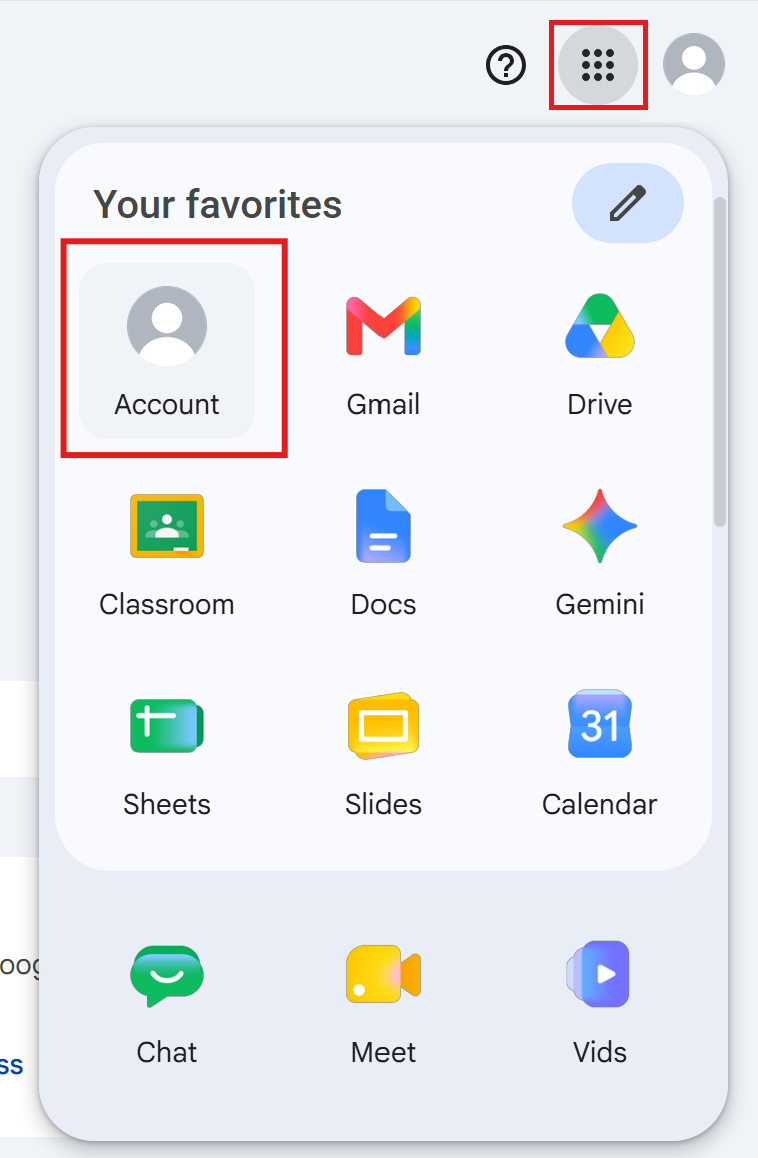
**Step 1** — **Open the Google Account:** On any Google page (for example Gmail), click the **Google apps** icon (nine dots) at the top right and click **Account**.
**Step 2** — **Open Linked Apps:** In the left menu, click **Linked apps.**
**Step 3** — **Open Pocket HRMS:** Click **Pocket HRMS** in the list. If many apps are listed, type Pocket HRMS in **Search linked apps by name**.
**Step 4** — **Remove the Access:** Click **Delete all.**
**Step 5** — **Confirm**: In the **Delete all** pop-up, click **Confirm.**
The message **You're no longer using Pocket HRMS with your Google Account** appears at the bottom of the screen.
**Step 6** — **Log Out and Close Chrome:** Log out of Pocket HRMS ESS and close all Chrome windows.
**Step 7** — **Schedule the Interview Again:** Open Chrome, log in to Pocket HRMS ESS and schedule the interview again with **Online** mode and **Google Meet** platform selected (see [**Part B**](#part-b-recruiters-first-time-google-sign-in)). Click **Schedule Interview.**
**Step 8** — **Select the Google Account:** Google detects the account signed in to Chrome and shows it in **Sign in to pockethrms.com with google.com.** Click the account to continue. If more than one Google account is signed in to Chrome, all of them are listed. Select the account to use for meeting links.
**Step 9** — **Allow Calendar Access Again:** In **Select what Pocket HRMS can access,** tick both permissions (or **Select all**) and click **Continue**, as in [**Part B, Step 5.**](#part-b-recruiters-first-time-google-sign-in) The interview is scheduled and the meeting link is generated.
### **Troubleshooting**
| **Issue** | **Cause** |
| ---------------------------------------------------------------------------- | ------------------------------------------------------------------------------------------------------------------------------------------------------------- |
| "Unable to generate meeting link. Please paste the interview link manually." | The recruiter clicked **Cancel** on the Google sign-in. Click **Schedule Interview** again and sign in, or select **Manual** in **Platform** and paste a link |
| Recruiter is asked to sign in again | The browser found the Google account signed out. Sign in again to continue |
| Meeting link is created from the wrong Google account | A different account was selected in the account chooser. Sign out of that account in the browser and select the correct account at the next sign-in |
| Interview call ends at 60 minutes | The meeting was created from a free personal Gmail account and had 3 or more participants. Use a paid Google Workspace account |
### **FAQs**
Answers to the questions customers and recruiters most often ask after reading this guide.
### **Setup**
### **Q1: Does our IT team need to do any setup in Google?**
No. The integration is enabled with a single toggle in Pocket HRMS. No Google admin setup, keys or credentials are required.
### **Q2: Can Google Meet and Microsoft Teams both be enabled?**
Yes. Both can be enabled at the same time. The recruiter selects the platform in **Platform** for each interview.
### **Security & Data**
### **Q3: Does Pocket HRMS see the recruiter's Google password?**
No. The password is entered on Google's own sign-in page, not in Pocket HRMS.
### **Q4: What Google data does Pocket HRMS access?**
Only the Google Calendar of the signed-in account, to create the interview event and its Google Meet link. Pocket HRMS does not read email, Google Drive files or any other Google data.
### **Q5: Where is the Google sign-in stored?**
In the recruiter's browser, not in Pocket HRMS.
### **Q6: How can a recruiter stop Pocket HRMS from using their Google account?**
Sign out of the Google account in the browser. Pocket HRMS uses the account only to create meeting links, and cannot create links until the recruiter signs in again.
### **Licensing & Cost**
### **Q7: Is the Google Meet integration included in our current Pocket HRMS plan, or does it need an extra charge?**
There is no additional charge from Pocket HRMS for the Google Meet integration.
### **Q8: Do we need a paid Google account?**
No. A free Google account works. However, Google ends calls with 3 or more participants at 60 minutes on free accounts. For longer panel interviews, use a paid Google Workspace account.
### **Using the Integration**
### **Q9: Can recruiters use a personal Gmail account?**
Yes. A personal or work Google account can be used. A work account is recommended, as candidates see the account as the meeting organizer.
### **Q10: Who receives the meeting invite?**
The candidate, every interviewer on the panel and the recruiter receive an email and a calendar invite.
### **Q11: If an interview is rescheduled in Pocket HRMS, is the Google Meet invite updated too?**
Yes. Rescheduling updates the original invite with the new date and time. No new meeting is created.
### **Q12: How often is the recruiter asked to sign in?**
Only the first time they schedule an interview with Google Meet, and again whenever the browser finds the Google account signed out.
### **Q13: What if a recruiter does not want to sign in to Google?**
They can select **Manual** in **Platform** and paste a meeting link themselves.
### **Maintenance**
### **Q14: Does anything need to be renewed?**
No. The integration uses no keys or secrets, so nothing expires. A recruiter only needs to sign in again if their Google account is signed out in the browser.
**For any queries, contact** [**support@pockethrms.com**](mailto:support@pockethrms.com)