> For the complete documentation index, see [llms.txt](https://docs.pockethrms.com/llms.txt). Markdown versions of documentation pages are available by appending `.md` to page URLs; this page is available as [Markdown](https://docs.pockethrms.com/hr-and-admin-portal/cloud-configuration/setting/attendance/single-punch.md).

# Single Punch

### **Single Punch Setting**

The **Single Punch** feature lets employees record their attendance with one punch instead of separate in and out punches.

HR or the administrator can enable **Single Punch** for selected employee categories or for individual employees. When the system detects a single punch from an employee, it allocates the shift assigned to that employee.

This helps in:

* Tracking attendance for employees on flexible hours, remote work or staggered shifts
* Recording attendance with one punch per day
* Reducing manual attendance correction by HR

### **How to Activate the Single Punch Attendance Setting?**

**Path: Login into Cloud Portal → Settings → Attendance → Attendance Setting → Single Punch**

**Step 1: Open Single Punch Settings**

Log in to the **Cloud portal** and go to **Settings**. Select the **Attendance** tab,

<figure><img src="https://4282324958-files.gitbook.io/~/files/v0/b/gitbook-x-prod.appspot.com/o/spaces%2F-MXep_PEmh8mDPVWj49x%2Fuploads%2Fcgr7Tlq4o7v3Z4yQxJpG%2F1.png?alt=media&amp;token=f06a616a-2209-4724-ad1c-2447bee5225b" alt=""><figcaption></figcaption></figure>

click **Attendance Setting** in the left panel, and scroll down to click **Single Punch**.

<figure><img src="https://4282324958-files.gitbook.io/~/files/v0/b/gitbook-x-prod.appspot.com/o/spaces%2F-MXep_PEmh8mDPVWj49x%2Fuploads%2FF9JrmqVwGvjtBp3ViJwn%2F2.png?alt=media&amp;token=263ed2c8-dbc4-479a-939b-ca66454a269d" alt="" width="375"><figcaption></figcaption></figure>

<figure><img src="https://4282324958-files.gitbook.io/~/files/v0/b/gitbook-x-prod.appspot.com/o/spaces%2F-MXep_PEmh8mDPVWj49x%2Fuploads%2FRcclEexvu82l5JOvnYQA%2F3.png?alt=media&amp;token=9fc78b40-74f1-49aa-850c-fef9f59110f5" alt="" width="198"><figcaption></figcaption></figure>

**Step 2: Activate Single Punch**

Enable **Activate Single Punch**. The employee selection section is displayed once toggle is the enabled.

<figure><img src="https://4282324958-files.gitbook.io/~/files/v0/b/gitbook-x-prod.appspot.com/o/spaces%2F-MXep_PEmh8mDPVWj49x%2Fuploads%2F0qmBVc3F626Iy5ZuIN2W%2F4.png?alt=media&amp;token=5943f5fa-a92f-4a3c-8bc2-9a8b7efb3230" alt=""><figcaption></figcaption></figure>

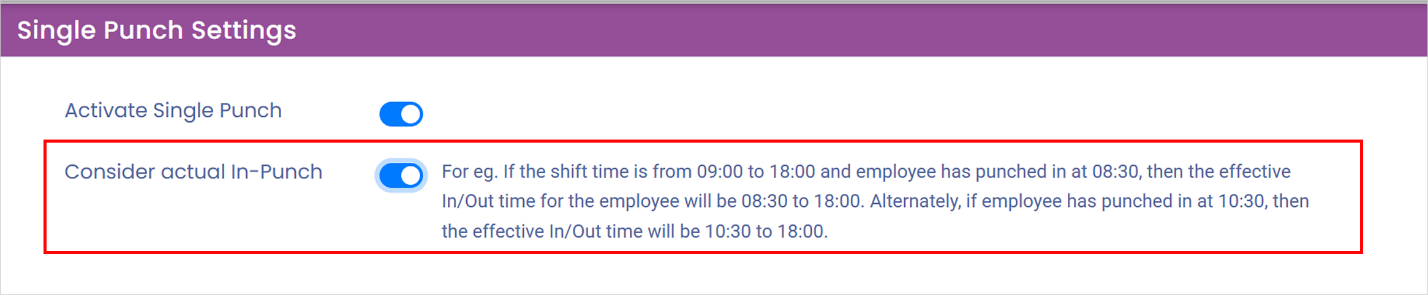
**Step 3: Choose Whether to Consider the Actual In-Punch**

Enable **Consider actual In-Punch** if the employee's actual punch time should be used as the effective in time.

<figure><img src="https://4282324958-files.gitbook.io/~/files/v0/b/gitbook-x-prod.appspot.com/o/spaces%2F-MXep_PEmh8mDPVWj49x%2Fuploads%2FJpCVjcDlkm1hshs0rp0B%2F5.png?alt=media&amp;token=c99f27ae-7ca9-4105-ae11-b30fb5ee9146" alt=""><figcaption></figcaption></figure>

For example, if the shift time is 09:00 to 18:00:

| **Employee punches in at** | **Effective In/Out time** |
| -------------------------- | ------------------------- |
| 08:30                      | 08:30 to 18:00            |
| 10:30                      | 10:30 to 18:00            |

**Step 4: Select Employees by Category or Employee wise Filters**

Under **Select Employees**, select one of the following:<br>

* **Category** – to apply **Single Punch** to employee categories

<figure><img src="https://4282324958-files.gitbook.io/~/files/v0/b/gitbook-x-prod.appspot.com/o/spaces%2F-MXep_PEmh8mDPVWj49x%2Fuploads%2FU9CmhvX5RKc920tHpGsX%2F6.png?alt=media&amp;token=abf03796-d55c-4b8c-b0fc-4c5aa6684888" alt=""><figcaption></figcaption></figure>

* **Employee** – to apply **Single Punch** to individual employees

<figure><img src="https://4282324958-files.gitbook.io/~/files/v0/b/gitbook-x-prod.appspot.com/o/spaces%2F-MXep_PEmh8mDPVWj49x%2Fuploads%2FHjl5FV181IlQGDiigOzq%2F7.png?alt=media&amp;token=7e362bfc-8bda-4fa6-8c99-9c1e9d3a35a3" alt=""><figcaption></figcaption></figure>

**Step 5: Select the Categories or Employees**

Tick the categories or employees for which **Single Punch** should apply. Tick **Select All** to select every item in the list.

<figure><img src="https://4282324958-files.gitbook.io/~/files/v0/b/gitbook-x-prod.appspot.com/o/spaces%2F-MXep_PEmh8mDPVWj49x%2Fuploads%2FrsIQtLCB5fqdYsmwxt6c%2F8.png?alt=media&amp;token=b8ed6b72-4a57-4150-9634-2268ed51c2ba" alt=""><figcaption></figcaption></figure>

**Important:** Ensure a shift is **already** assigned to every selected employee before saving.

**Step 6: Save the Settings**

Click **Save** to apply the **Single Punch** settings.

<figure><img src="https://4282324958-files.gitbook.io/~/files/v0/b/gitbook-x-prod.appspot.com/o/spaces%2F-MXep_PEmh8mDPVWj49x%2Fuploads%2F0SuzFQHPx2MjMJkMo8Cf%2F9.png?alt=media&amp;token=8e537ad3-c9a1-41d3-81cd-7d5a219d8613" alt=""><figcaption></figcaption></figure>

### **How Single Punch Works?**

#### **Shift Allocation**

When a single punch is detected for an employee, the system automatically marks the employee as **Present** for the day, provided that the punch occurs within the shift time range already assigned to the employee.

#### **Effective In/Out Time**

If **Consider actual In-Punch** is enabled, the punch time becomes the effective in time and the shift end time remains the effective out time.

### **Auto Punch Setting**

The **Auto Punch Setting** is available on the same page, below the **Single Punch** settings. If enabled, the configured set of employees is automatically marked with In and Out punches as per the shift assigned for individuals for the Leave Calendar Period.

**Step 1: Activate Auto Punch**

Enable **Activate Auto Punch**.

<figure><img src="https://4282324958-files.gitbook.io/~/files/v0/b/gitbook-x-prod.appspot.com/o/spaces%2F-MXep_PEmh8mDPVWj49x%2Fuploads%2FkraxTF9c3bD8TBg3zuyl%2F10.png?alt=media&amp;token=c0adf28a-3bb1-454a-87e9-30ee8938bee8" alt=""><figcaption></figcaption></figure>

**Step 2: Select the Business Unit and Business Value**

Select a **Business Unit**, and then select the **Business Value** under it. The **Choose Employee** list shows only the employees under the selected **Business Value**.

<figure><img src="https://4282324958-files.gitbook.io/~/files/v0/b/gitbook-x-prod.appspot.com/o/spaces%2F-MXep_PEmh8mDPVWj49x%2Fuploads%2FnXFOMPDog7bHGUjRi804%2F11.png?alt=media&amp;token=2385af5a-ffc7-490b-a71e-550ac70c8d3e" alt=""><figcaption></figcaption></figure>

**Step 3: Select the Employees**

Under **Employee**, click **Choose Employee** and select the employees to be marked with attendance automatically.

<figure><img src="https://4282324958-files.gitbook.io/~/files/v0/b/gitbook-x-prod.appspot.com/o/spaces%2F-MXep_PEmh8mDPVWj49x%2Fuploads%2FQPbWuATdp7K2MHotrFl4%2F12.png?alt=media&amp;token=d818d500-6c94-4b57-aba2-4b06544a3ab3" alt=""><figcaption></figcaption></figure>

**Step 4: Add the Employees**

Click **Add**.

<figure><img src="https://4282324958-files.gitbook.io/~/files/v0/b/gitbook-x-prod.appspot.com/o/spaces%2F-MXep_PEmh8mDPVWj49x%2Fuploads%2FfgADgKHuUeM0YdRxPAkj%2F13.png?alt=media&amp;token=e44256e1-0276-45c9-a348-67dc62b39a77" alt=""><figcaption></figcaption></figure>

The **Overview** table displays the **Code**, **Name** and **Action** for the added employees.

<figure><img src="https://4282324958-files.gitbook.io/~/files/v0/b/gitbook-x-prod.appspot.com/o/spaces%2F-MXep_PEmh8mDPVWj49x%2Fuploads%2FseYD0oSkrMFL35bDDyDu%2F14.png?alt=media&amp;token=a049af0e-0f90-4c90-9a23-5deff0ffb039" alt=""><figcaption></figcaption></figure>

You can use **Search** to find an employee in the **Overview** table.

<figure><img src="https://4282324958-files.gitbook.io/~/files/v0/b/gitbook-x-prod.appspot.com/o/spaces%2F-MXep_PEmh8mDPVWj49x%2Fuploads%2Fo3MeeqMUAkujRmd4n6FP%2F15.png?alt=media&amp;token=eea94203-df81-41de-83b7-ec664d45f8a9" alt=""><figcaption></figcaption></figure>

**Step 5: Save the Auto Punch Settings**

Tick the employees in the **Overview** table and click **Save** to apply the **Auto Punch** settings. Employees left unticked are not included in **Auto Punch**.

<figure><img src="https://4282324958-files.gitbook.io/~/files/v0/b/gitbook-x-prod.appspot.com/o/spaces%2F-MXep_PEmh8mDPVWj49x%2Fuploads%2F8B7V59D9E33jmJ5YQ4BV%2F16.png?alt=media&amp;token=e426f986-e665-425a-aa38-9638d2e51acc" alt=""><figcaption></figcaption></figure>

**Step 6: Delete Multiple Employees**

Tick the employees in the **Overview** table and click **Delete** to remove them.

<figure><img src="https://4282324958-files.gitbook.io/~/files/v0/b/gitbook-x-prod.appspot.com/o/spaces%2F-MXep_PEmh8mDPVWj49x%2Fuploads%2FEv43sh4fgZQAawv08kAD%2F17.png?alt=media&amp;token=ee9a081b-010a-4490-98cb-0bfe72506ff2" alt=""><figcaption></figcaption></figure>

**Step 7: Delete a Single Employee**

Click the **trash** icon in the **Action** column to remove that employee.

<figure><img src="https://4282324958-files.gitbook.io/~/files/v0/b/gitbook-x-prod.appspot.com/o/spaces%2F-MXep_PEmh8mDPVWj49x%2Fuploads%2FxdOQqHPpB2SCkXtIgWSz%2F18.png?alt=media&amp;token=0ca05766-c63c-4d3e-a930-a16eeddf823a" alt=""><figcaption></figcaption></figure>

**Path Link:** <https://cloud.pockethrms.com/Settings/Employee/Index?module=attendance&submodule=SinglePunch>

For any queries, contact [**support@pockethrms.com**](mailto:support@pockethrms.com)