> For the complete documentation index, see [llms.txt](https://docs.pockethrms.com/llms.txt). Markdown versions of documentation pages are available by appending `.md` to page URLs; this page is available as [Markdown](https://docs.pockethrms.com/module-guides/learning-module.md).
# Learning Module
### **Learning Module**
The **Learning** Module in Pocket HRMS lets you set up, run, and track training programs for your employees. It covers the full process — from defining the basic building blocks like training types, trainers, and locations, to creating a learning program, scheduling and assigning it to employees, and tracking progress through reports.
This guide walks you through the module phase by phase, in the order you would typically set things up.
### **Configuring the Learning Module**
1. **How to Create a Learning Type?**
**Path:** Cloud > Settings > Learning > Learning Type
**Learning types** let you categorize and organize different kinds of training content, so you can group related trainings under one label (for example, Digital Marketing or Autocad) and associate multiple individual learnings with each type.
**Step 1:** Log in to **Cloud**, go to **Settings**, open **Learning**, and select **Learning Type**.
**Step 2:** The Learning Type List shows all existing types and a total entry count. Use the **search bar** to find a type by name.
**Step 3:** Click **+ Add New** Type. Enter a name in the **Learning Type** Name field, then click Add Learning Type to save.
**Step 4:** Click the **eye icon** in the View column to see the learnings under a type. This opens the Learning Name List, with a count badge (for example, ESS Training shows 5 learnings).
**Step 5:** Click the **pencil icon** to edit a type. The Edit window shows the name field (pre-filled) and a Current Status box with the number of associated learnings. **Update** the name and click Save Changes.
**Step 6:** To **delete** a Learning Type, click the **trash icon** in the Action column.
2. **How to Add or Create a New Trainer?**
**Path:** Cloud > Settings > Learning > Trainer Details
**Trainer Details** lets you maintain a list of the people who deliver training — both employees from within your organization (Internal Trainer) and trainers from outside your organization (External Trainer).
**Step 1:** Log in to **Cloud**, go **to Settings**, open **Learning**, and select **Trainer Details**.

**Step 2:** Use the **Internal Trainer** and **External Trainer** tabs to switch between the two lists. Each trainer appears as a card showing their **name**, **department**, **skills**, and **certification**.
**Step 3:** Use the **search bar** to find a specific trainer.
**Step 4:** Click the **+ icon** to add a new trainer. Choose **Internal Trainer** or **External Trainer**at the top of the window.
**Step 5:** For an **Internal Trainer**, select the **Employee Code** from the dropdown (mandatory). Department is filled in automatically based on the employee record. Enter **Skills** and **Certified In** (both mandatory), then click **Save**. Click Clear to reset the form.
**Step 6:** For an **External Trainer**, enter **Trainer Name**, **Email**, **Phone**, **Skills**, and **Certified In** — all mandatory — then click **Save**. Click Clear to reset the form.
**Step 7:** Click the **pencil icon** on a trainer's card to edit their details. The Edit window shows Employee Code and Department as read-only (pre-filled), with Skills and Certified In editable. Update the fields and click **Update** to save.

**Step 8:** Click the **trash icon** on a trainer's card to **delete** the trainer.
3. **How to Add a Training Location?**
**Path:** Cloud > Settings > Learning > Training Location
**Training Location** lets you maintain a list of physical venues where training sessions take place, such as office meeting rooms or city-based venues.
**Step 1:** Log in to **Cloud**, go to **Settings**, open **Learning**, and select **Training Location**.
**Step 2:** Each **location appears** as a card showing its **name** and **address**.
**Step 3:** Click the **+ icon** to add a new location. In the Training Location window, enter the **Location name** and **Address** (both mandatory), then click **Save**. Click Close to exit without saving.
**Step 4:** Click the **pencil icon** on a location's card to **edit** it. The Training Location window opens pre-filled with the existing Location and Address. Update the fields and click **Update** to save.
**Step 5:** Click the **trash icon** on a location's card to **delete** it.
### **Creating the Learning Program**
1. **How to Create a Learning Program?**
**Path:** Cloud > Settings > Learning > Learning Program Details
The Learning page lists all **learning programs** created in the system. Each program appears as a card showing its name, mode (Online/Offline), duration, and date range.
**Step 1:** Log in to **Cloud** Portal, go to **Settings**, open **Learning**, and select **Learning** **Program** **Details**.
**Step 2:** Click the **+ icon** at the top right of the Learning page to create a new program. This opens the Create Learning Program window, with four tabs: **Learning** **Details**, **Configuration**, **Reference** **Material**, and **Assignment**.

**Step 3:** In the **Learning Details** tab,
1. Enter the **Learning Name, Learning Type**, **Training Mode** (Online or Offline)

2. **Learning Platform**, **Duration**(In Hours or Days) along with their values,
**Eg**: 5 Hours or 3 Days.

3. **Start Date** and **End Date, Location**, and **Learning Head** — all mandatory.
4. If you want to enable **certificate** options, **Check the box**, and Click **Save**.

**Step 4:** In the **Configuration tab**, under **Notification**, enable **Learning Email & Feedback**, set **reminder timing**, and select a **feedback form**. Click **Save**.
**Step 5:** In the **Reference Material** tab, choose a **Content Type** from the Dropdown, then click **Create**.
**Step 6:** In the **Assignment tab**, click **+ Add Assignment**, Fill in the details, then **Save** **Assignment**.
**Step 7:** Check the **Certificate checkbox** in Learning Details to enable the **Certification Details tab**. There, select a **Template** and enter a **Title**, then click **Save**.
**Step 8:** Click the **copy icon** on a program's card to duplicate it. Enter a **Learning Name, Start Date, and End Date**, then click **Copy**.

**Step 9:** Click the **pencil icon** on a program's card to edit it. This opens the Update Learning Program window with the same tabs described above. Make Changes as per your requirement, and click on **Save**.
**Step 10:** Click the **archive icon** on a program's card to **archive** that learning program.
**Step 11:** Click the **trash icon** on a program's card to **delete** it.
2. **How to Create a Training Batch?**
**Path:** Cloud > Settings > Learning > Training Batches
**Training Batches** lets you group specific employees under a learning program, so you can track that group's training together.
**Step 1:** Log in to **Cloud** Portal, go to **Settings**, open **Learning**, and select **Training** **Batches**.

**Step 2:** Enter a **Batch Name**, select one or more **Employee Codes**to be added to the batch, and select one or more **Learnings** from the **Select Learnings field** (all mandatory). Select Learnings refers to the learning program names created earlier under Learning Program Details.
**Step 3:** Optionally, set a **Practical Date** and **Select Sessions**. Click **Create** Batch to save.
**Step 4:** The **Created Batches table** below lists all batches created so far, showing **Batch Name, Employees, Learnings, Practical Date, and Learning Session**.
**Step 5:** In the Created Batches table, click **Edit** in the Actions column to modify a batch. The Edit Training Batch window opens pre-filled with the Batch Name, Practical Date, Employees, Learnings, and Sessions. **Update** the fields and click **Save**.

**Step 6:** Click **Delete** in the Actions column to delete a batch.
### **Assigning Training**
**How to Assign a Learning Program to Employees?**
**Path:** Cloud > Settings > Learning > Assign Learning Program
**Assign Learning** lets you assign a specific learning program to one or more employees, using filters to narrow down who it applies to.
**Step 1:** Log in to **Cloud** Portal, go to **Settings**, open **Learning**, and select **Assign** **Learning** **Program**.
**Step 2:** Select a **Learning Type** and a **Learning Name**from their respective dropdowns. Click the **assign Button** to choose which employees to assign the program to.
**Step 3:** Choose an **Employee** **Status**: **All**, **Active**, or **Inactive**. Select specific employees using **Select Employee**, or narrow the list further using the Filters section (Branch, Department, Designation, Location, and others). Click **Apply**.
**Step 4:** Click **"Click here to view assigned employee records"** to see everyone already assigned to a program. Set a **Start Date** and **End Date** to filter the list by assignment period.
**Step 5:** Click **Edit** next to a record to modify it, Scroll the page upwards to change and **update** the details.
### **Tracking and Reporting**
1. **How to Generate a Training Management Detailed Report?**
**Path:** Cloud > Settings > Learning > Training Management Detailed
**Report Training Management Detailed** lets you pull a training status report, either grouped by employee category or filtered down to a specific employee.
**Step 1:** Log in to **Cloud** Portal, go to **Settings**, open **Learning**, and select **Training** **Management** **Detailed**.

**Step 2:** Use **Group By** to group the report, and **check** **Summary** if you want a summarized view. Optionally filter by **Training Name** and **Training Status**.

**Step 3:** To pull the report for a specific employee, select them under **Employee**. Set a **From Date** and **To Date** to define the reporting period.

**Step 4:** To pull it by **category** instead, use the **Category panel** on the right to check one or more categories (for example, Supervisor Trainee, Staff, Team Lead).
**Step 5:** Click **Download Excel** or **Download PDF** to get the report in your preferred format.
2. **How to Generate a Training Report?**
**Path:** Cloud > Settings > Learning > Training Reports
**Training Reports** lets you generate one of several report types from a single page, using the Report Type dropdown to switch between them.
**Step 1:** Log in to **Cloud Portal**, go to **Settings**, open **Learning**, and select **Training** **Reports**.
**Step 2:** Use the **Report Type dropdown** to choose which report to generate: **Training Master Report**, **Employee Training Card Report**, or **Training Progress Report.**
**To generate a Training Master Report:**
**Step 1:** Select **Training Master Report** from the Report Type dropdown.
**Step 2:** Filter by **Employee Code, Learning Type, Training Name, Start Date, End Date, Batch Name,and Type** as needed.
**Step 3:** Click **View**.
**To generate an Employee Training Card Report:**
**Step 1:** Select **Employee Training Card Report** from the Report Type dropdown.
**Step 2:** Select an **Employee Code.** Click **View.**
**To generate a Training Progress Report:**
**Step 1:** Select **Training Progress Report** from the Report Type dropdown.
**Step 2:** Filter by **Employee Code, Learning Type, Training Name, Start Date, End Date, Batch Name, and Type** as needed. Click **View**.
**Path Link:** [**https://cloud.pockethrms.com/Settings/Employee/Index?module=Training\&submodule=TrainingReports**](https://cloud.pockethrms.com/Settings/Employee/Index?module=Training\&submodule=TrainingReports)
### **Learning on the ESS Portal**
This section covers the employee-facing side of the Learning Module, accessed through the **ESS Portal**.
**Path:** Log in to the ESS Portal > Learning > Learning
**Step 1:** Log in to the **ESS Portal**, Click **Learning** in the top navigation, From the sub-menu, select **Learning**.
**Step 2:** This opens a screen with six tabs:
**Dashboard, Learning List, Employee Session, Certificate Detail, Feedback, and Learning Catalog.**
1. **Dashboard**
**Step 1:** Open the **Dashboard** tab. The **Training Status** panel on the left shows a count of trainings for the employee. The **calendar** on the right shows scheduled trainings by date. Use the arrows to move between months, click today to jump to the current date, and use month, week, or day to change the calendar view.
**Step 2:** Scroll down to see the **Certification** Received panel, listing certificates the employee has earned (for example, IVIS Learning Certificate, Online Sales Training Certificate).

**Step 3:** Below that, the **Training List panel** shows trainings assigned to the employee, each with a completion date, and The **Training Programs** Completed In Month panel shows trainings completed within the current month.
2. **Learning List**
**Step 1:** Open the **Learning List** tab and:
1. Set a **date range** using the two date fields to filter which learning programs are shown.
2. A **count badge** next to the date fields shows the total number of programs.
3. Use the **Status dropdown** to filter by status (default is All).
4. then click **View** to apply it.
5. Click **Download** to export the list.
6. Use the **search bar** to find a specific learning program by name.
**Step 2:** Each **learning program** appears as a **card** showing its **name, date range, and status (for example, Expired or Completed).** Cards for programs assigned by a manager are marked **"Assigned by Manager".**
**Step 3:** Click a **card** to open its details. This opens a screen with the tabs **Learning Details, Reference Material, Assignments, Session, and Certificate Details.**
**Step 4:** In the **Learning Details tab**, view the **Learning Name**, **date range**, **Description**, and a **Progress bar showing percentage** completed.
**Step 5:** In the **Reference Material tab**, select a document from the list (for example, a video or linked document) to view its content or link in the panel on the right. Click **Next** to move to the next document.
**Step 6:** The **Assignments tab** lists assignments for that learning program, showing Assignment Name, Assignment Description, Choose File, Trainer Rating, Trainer Feedback, and Status.
**Step 7:** The **Session tab** shows Employee Sessions and Previous Session History for that learning program.
**Step 8:** The **Certificate Details** tab lists certificates for that learning program, showing Learning Name, Trainer Name, Learning Date, Status, and Action.
3. **Employee Session**
**Step 1:** Open the **Employee Session** tab. The **Employee Sessions** panel at the top shows any currently scheduled sessions for the employee.
**Step 2:** The **Previous Session** History table below lists past sessions, showing details like Trainer Name, Employee Name, Learning Name, Session Name, Date, and Time.
**Step 3:** Use the **search bar** to find a specific session, and use Previous, Next, and the page numbers to move through the list.

4. **Certificate Detail**
**Step 1:** Open the **Certificate Detail** tab.
The table lists all certificates earned, showing **Learning Name, Trainer Name, Learning Date, and Status**. Click the **download icon** in the Action column to download a certificate.

**Step 2:** Use the **search bar** to find a specific certificate, and use Previous, Next, and the page numbers to move through the list.
5. **Feedback**
**Step 1:** Open the **Feedback tab**. The table lists trainings assigned to the **employee, showing Trainer Head, Training Name, Training Status, Employee Feedback, and Employee Rating.**

**Step 2:** Click the **Employee Rating dropdown** and select a rating from **1 to 5**, then submit it.

**Path Link:** [**https://ess.pockethrms.com/Training/Transaction/MyTraining?Menu=Dashboard**](https://ess.pockethrms.com/Training/Transaction/MyTraining?Menu=Dashboard)
### **Trainer on the ESS Portal**
This section covers the Trainer sub-menu on the ESS Portal, used by employees who deliver training.
**Path:** Log in to the ESS Portal > Learning > Trainer > Trainer Dashboard
**Step 1:** Log in to the **ESS Portal**. Click **Learning** in the top navigation, and from the sub-menu, select **Trainer.**
**Step 2:** This opens a screen with four tabs: **Trainer Dashboard, Assign Training, New Employee Session, and Employee Session.**
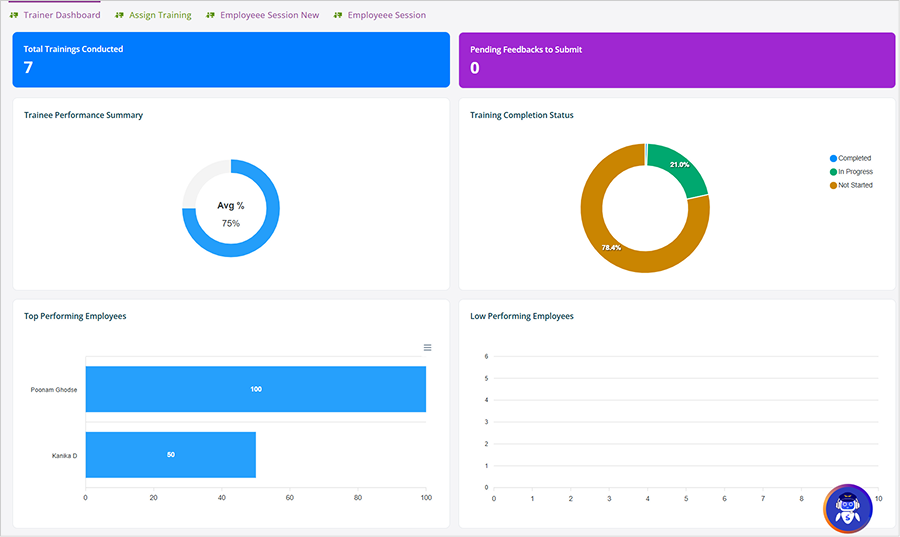
1. **Trainer Dashboard**
**Step 1:** Open the **Trainer Dashboard**tab.
**Step 2:** Check **Total Trainings** Conducted to see how many trainings you've delivered so far.
**Step 3:** Check **Pending Feedbacks** to Submit to see if any trainee feedback is still due from you.
**Step 4:** Look at **Trainee Performance Summary** for an overall average score across your trainees.
**Step 5:** Look at **Training Completion Status** to see how many trainings are Completed, In Progress, or Not Started.
**Step 6:** Scroll down to Top Performing Employees and Low Performing Employees to see which trainees are doing best and which need more support.
2. **Assign Training**
**Step 1:** Open the **Assign Training** tab. Select a **Learning Type** and **Learning Name**. Choose an **Employee Code**, then click **Submit** to assign the training to that employee.

**Step 2:** To assign the same training **to several employees** at once, click **Multiple** **Employee** instead. In the Assign Training Multiple window, search for employees by Code or Name, check the ones you want, then click **Save**.
**Step 3:** The table below lists all **training assignments**, showing **Employee Code, Employee Name, Learning Name, and Assigned Date**.
Use the **search bar** to find a specific assignment.
**Step 4:** Select one or more rows using the checkboxes, then click **Delete** to remove those assignments.

3. **Employee Session New**
**Step 1:** Open the **Employee Session New** tab.Select a **Learning Name (mandatory).** Optionally filter further by Batch Name, Session Name, and Session Date.
**Step 2:** Click **Search** to view matching sessions. Results appear in a table below, showing Training Name, Session Name, Session Deviation Name, Session Deviation Description, Session Date, Total, Present, and Absent. Click **Export** to download the results as an Excel file.
4. **Employee Session**
**Step 1:** Open the **Employee Session** tab. The **Employee Sessions** panel at the top shows any currently scheduled sessions.

**Step 2:** The **Previous Session History** table below lists past sessions, showing details like Trainer Name, Employee Name, Learning Name, Session Name, Date, and Time. Use the search bar to find a specific session.
**Path Link:** [**https://ess.pockethrms.com/Training/Transaction/MyTraining?Menu=Dashboard**](https://ess.pockethrms.com/Training/Transaction/MyTraining?Menu=Dashboard)
**For any queries, contact**
---
# Agent Instructions
This documentation is published with GitBook. GitBook is the documentation platform designed so that both humans and AI agents can read, navigate, and reason over technical content effectively. Learn more at gitbook.com.
## Querying This Documentation
If you need additional information that is not directly available in this page, you can query the documentation dynamically by asking a question.
Perform an HTTP GET request on the current page URL with the `ask` query parameter, and the optional `goal` query parameter:
```
GET https://docs.pockethrms.com/module-guides/learning-module.md?ask=&goal=
```
`ask` is the immediate question: it should be specific, self-contained, and written in natural language.
`goal` is optional and describes the broader end goal you are ultimately trying to accomplish on behalf of the user. GitBook uses it to tailor the answer towards what is most useful for that goal.
The response will contain a direct answer to the question and relevant excerpts and sources from the documentation.
Use this mechanism when the answer is not explicitly present in the current page, you need clarification or additional context, or you want to retrieve related documentation sections.
.png?alt=media&token=f8013b21-71cf-4da7-a148-c30f7f6b5c3a)