> For the complete documentation index, see [llms.txt](https://docs.pockethrms.com/llms.txt). Markdown versions of documentation pages are available by appending `.md` to page URLs; this page is available as [Markdown](https://docs.pockethrms.com/pocket-hrms-2.0-mobile-app/leave-and-attendance/request/attendance-regularization.md).
# Attendance Regularization
### Attendance Regularization
### How to apply Attendance Regularization in Pocket HRMS 2.0 Mobile application?
**Path**: Login to mobile app of Pocket HRMS 2.0 > click on plus sign > Select Apply regularization> Update > Fill in the In time out time > select out date > add reason > Save.
**Step 1:** Log in to the **Pocket HRMS 2.0 mobile app**.
**Step 2:** Tap on the **plus sign (+)** icon, typically located on the home dashboard.
**Step 3:** Select the **‘Apply regularization’** option from the menu that appears.
**Step 4:** Locate the specific date with the attendance mismatch and tap **‘Update’**.

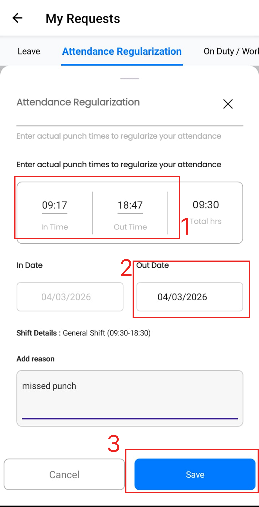
**Step 5:** Accurately fill in your actual **In time** and **Out time**, Select the correct **Out date** (this is particularly important if your shift crossed midnight). Then Enter a valid **reason** for the regularization request in the provided text field and Tap **‘Save’** to submit your request for managerial approval.
**Alternate way:**
**Path:** Login to mobile app of Pocket HRMS 2.0 > click on 3 horizontal lines > Leave menu > Request > > Select Apply regularization tab > Update > Fill in the In time out time > select out date > add reason > Save.
**Step 1:** Log in to the **Pocket HRMS 2.0 mobile app**.
**Step 2:** Tap on the **three horizontal lines** (hamburger menu) located at the top left corner of the screen.
**Step 3:** Select the **‘Leave’** module from the menu and tap on **‘Request’**.
**Step 4:** Navigate to and select the **‘Apply regularization’** tab.
**Step 5:** Locate the specific date with the attendance discrepancy and tap **‘Update’**.

**Step 6:** Accurately fill in your actual **In time** and **Out time**, Select the correct **Out date** (this is particularly important if your shift crossed midnight). Then Enter a valid **reason** for the regularization request in the provided text field and Tap **‘Save’** to submit your request for managerial approval.
{% embed url="" %}
For any queries, contact