> For the complete documentation index, see [llms.txt](https://docs.pockethrms.com/llms.txt). Markdown versions of documentation pages are available by appending `.md` to page URLs; this page is available as [Markdown](https://docs.pockethrms.com/hr-and-admin-portal/cloud-configuration/setting/organization/two-way-authenticator.md).
# Two-way authenticator
### Two-way Authenticator
### What is two-way authenticator?
It’s a security method where you verify your identity using **two different proofs** instead of one.Normally, you log in with a **password**. With 2-way authentication, you also provide a **second factor** such as:
* A **one-time code** from an app (Google Authenticator, Microsoft Authenticator)
Before knowing the process to use Two-way authenticator, first you have to give access to the user for which refer the process below:
### How to Give Access of Employee Wizard?
To grant access of Employee Wizard to the user follow the path below:
**Path:** Cloud portal > Settings > Organization > Users > Add a new user by clicking on plus icon if required, or click on View User Rights > Then, select the appropriate category and menus e.g.: Analytics > Analytics > Data Wizard, and continue assigning the necessary access as needed > Save.
**Step 1:** Login to cloud portal, go to ‘Settings’ in the menu, and select ‘Organization’ from the tab.

**Step 2**: Click on ‘Users’ and Add a new user (if required) by clicking on the ‘Plus icon’ on the right or click on ‘view user rights’ for existing users

**Or**

**Step 3:** **If you click on ‘+’ icon then**: Fill the name, email ide, password and company, then click on **‘Create user’**.
**Or**
**Step 3: If you clicked on view user rights, then:** Select the appropriate ‘Category’ and ‘Menus’ and click on ‘**Save’.**

**Link:**
### How does Two-way authenticator work in Pocket HRMS?
Refer the path below to know the process to activate two-way authenticator in Pocket HRMS.
**Path:** Cloud login > Settings > Organization > Two- step verification > Download google authenticator application on your phone and scan the QR code on the screen > Enable Yes/No button > Update
**Step 1:** Log in to the '**Cloud**' portal and go to '**Settings**' menu.
**Step 2:** Select '**Organization**' and then '**Two- step verification**'.

**Step 3:** Enable **Yes/No button** as required.
**Step 4**: **Download the google authenticator application** on your mobile and **scan the code.**
**Note**: iOS users can download the ‘Google Authenticator Application’ from App store and
Android users can download the application from their play store.
**Note-To Scan from mobile: First, Open the ‘Google Authenticator app’ click on the send codes, and then ‘Scan QR Code’. Or Click on the ‘+’ sign and scan the code on your screen.**
**Step 4:** Click on '**Update**'.
**Link:**
### How to delete the two-step verification?
**Path:** Cloud login > Settings > Organization > Two- step verification delete setting
**Step 1:** login to the cloud portal, go to **‘Settings’** menu.
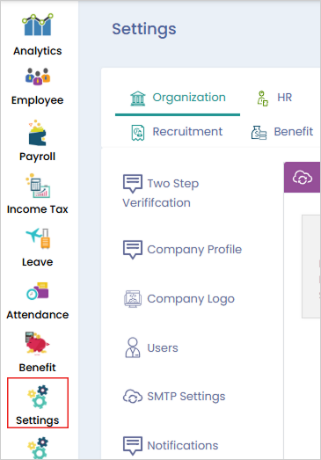
**Step 2:** Under the **‘Organization’** tab, select ‘**Two-way verification Delete Setting’** option.
**Step 3: Select the ID** that needs to be deleted and click **the Delete button.**

**Link:**
For any queries reach out to the Pocket HRMS application consultant.
At