> For the complete documentation index, see [llms.txt](https://docs.pockethrms.com/llms.txt). Markdown versions of documentation pages are available by appending `.md` to page URLs; this page is available as [Markdown](https://docs.pockethrms.com/hr-and-admin-portal/cloud-configuration/employee-management/geo-location-employee-tagging-bulk-import.md).
# Geo Location Employee Tagging Bulk Import
### Geo Location Employee Tagging- Bulk Import
### How to do Employee tagging in specific location?
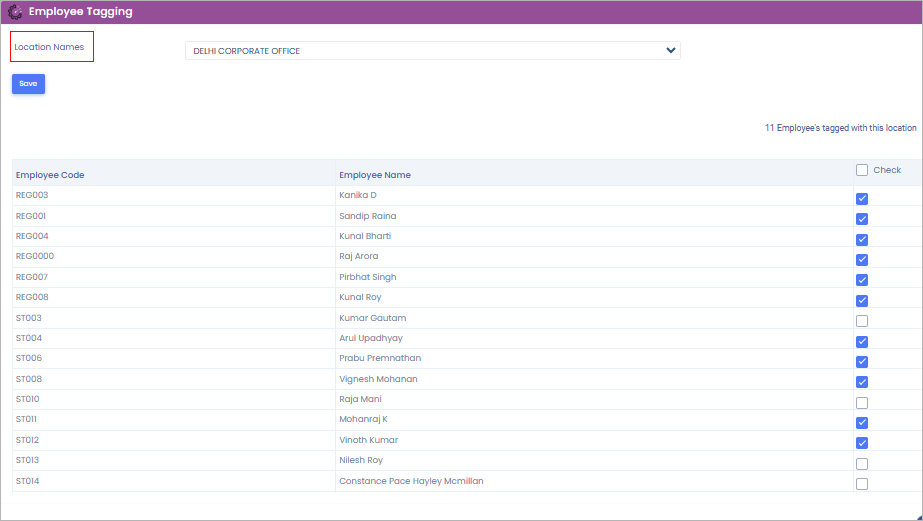
**Path**: Cloud portal>ESS Settings> profile info > geo location employee tagging > From the dropdown ‘Select Setting’ choose the location. The list of employees will appear. Here you can see the employees for whom the respective checkboxes are ticked these employees are tagged for the selected location.
**Step 1**: Log into the cloud portal, go to the ‘ESS Settings’ and under the ‘Profile Info’ tab click on the ‘Geo Location Tagging’ subtab.
**Step 2**: From the dropdown ‘Select Setting’ choose the location. The list of employees will appear. Here you can see the employees for whom the respective checkboxes are ticked these employees are tagged for the selected location.
{% embed url="" %}
### How to do geo location employee tagging in bulk?
#### From Employee menu:
**Path:** Cloud login > Employee > Employee Import > select ‘geo location employee tagging import’ from the dropdown of select import template > download the geolocation employee tagging sample import from the right top corner and make changes in the downloaded Excel sheet as per your need> select category > select setting name or add new > select the starting-ending row > select employee code column > select employee name column as per your excel sheet > map the components as per your Excel sheet > Save settings > Import Template (upload the Excel sheet prepared by you from the sample template) > Upload file.
**Step 1:** Log in to the **Cloud portal**. Navigate to the **‘Employee’** module, click on **‘Employee Import’**.

**Step 2:** In the import window, select **‘Geo Location Employee Tagging Import’** from the dropdown menu.

**Step 3:** Click the **‘Download geolocation employee tagging Sample import’** button (top right corner) to get the template. Fill in the necessary details in the Excel sheet and save it.


**Step 4:** Return to the portal to configure the import settings:
* **Select Category:** Choose the appropriate employee category.
* **Setting Name:** Select an existing setting or type a name to create a new one.
* **Row Details:** Define the **Starting Row** and **Ending Row** based on your Excel data.
* **Column Details:** Specify the **Employee Code** and **Employee Name** columns (e.g., Column A, Column B).

**Step 5:** **Map the components** by matching the system fields to the corresponding headers in your Excel sheet.

**Step 6:** Click **‘Save Settings’** to store the configuration.
**Step 7:** Click on **‘Import Template’** to browse and select your prepared Excel file. Finally, click **‘Upload File’** to complete the process.
**Link:**
{% embed url="" %}
### Validation Rules
**Standard Import Validations (Existing)**
* File must be .xlsx
* Sheet name must be valid
* Mandatory columns must be mapped
* Employee identifier must exist
* Location name must exist
**Row-Level Validations**
* Invalid employee → Row failure
* Invalid location → Row failure
* Duplicate tagging → Handled as per existing system logic
* All validation messages and formats remain unchanged
#### **You can also Upload the geo-location employee tagging in bulk from this alternative path-From ESS Settings menu:**
**Path:** Cloud Login > ESS settings > Profile info > Geo location employee tagging > Click on the upload icon on the right > download the geolocation employee tagging sample import from the right top corner and make changes in the downloaded Excel sheet as per your need> select category > select setting name or add new > select the starting-ending row > select employee code column > select employee name column as per your excel sheet > map the components as per your Excel sheet > Save settings > Import Template (upload the Excel sheet prepared by you from the sample template) > Upload file.
**Step 1:** Log in to the cloud portal, go to **'ESS settings'** menu, then click on **'Profile info'** tab.
**Step 2:** Select '**Geo location employee tagging**' option and click on the '**Upload icon'** on the right corner of the page.
**Step 3:** Click the **‘Download geolocation employee tagging Sample import’** button (top right corner) to get the template. Fill in the necessary details in the Excel sheet and save it.


**Step 4:** Return to the portal to configure the import settings:
* **Select Category:** Choose the appropriate employee category.
* **Setting Name:** Select an existing setting or type a name to create a new one.
* **Row Details:** Define the **Starting Row** and **Ending Row** based on your Excel data.
* **Column Details:** Specify the **Employee Code** and **Employee Name** columns (e.g., Column A, Column B).

**Step 5:** **Map the components** by matching the system fields to the corresponding headers in your Excel sheet.

**Step 6:** Click **‘Save Settings’** to store the configuration.
**Step 7:** Click on **‘Import Template’** to browse and select your prepared Excel file. Finally, click **‘Upload File’** to complete the process.
Link:
{% embed url="" %}
### How to configure geo location parameter?
**Path:** **Cloud login > ESS Settings > Profile Info > Global Setting > Geo Location Parameter Setting**
**Step 1:** Log in to the **Cloud portal** and navigate to the **‘ESS Settings’** module, Select the **‘Profile Info’** tab from the menu and Click on **‘Global Setting’** to access system-wide configurations.
**Step 2:** Select **‘Geo Location Parameter Setting’** to view and modify the specific parameters.
**Link:**
{% embed url="" %}
[
]()For any queries, contact

.png?alt=media&token=20901923-4bce-499b-a063-4495f7fb081e)

